











Canva just dropped a massive batch of 2026 updates, and if you opened the keynote or the release notes and immediately felt your brain short-circuit a little, fair. There is a lot in there.
The good news is this. Not every update matters equally when you are running a small business. Some of them are shiny. Some are niche. Some are genuinely going to save you time, make content creation easier, and help you get more out of Canva day to day.
If you are a coach, VA, service provider, or small business owner using Canva regularly, these are the updates worth your attention and how to actually use them.
Table of Contents
- Step 1: Start with the biggest change, Canva AI 2.0
- Step 2: Connect Canva AI to the assets and apps you already use
- Step 3: Get access to Canva AI 2.0 early if it is not showing up yet
- Step 4: Use Canva AI inside an existing design, not just from the homepage
- Step 5: Expect a few glitches and know the workaround
- Step 6: Skip Learn Grid unless education is central to your business
- Step 7: Use Canva Offline when your internet is unreliable
- Step 8: Try Print Shop if you create physical marketing materials
- Step 9: Build reusable branded pieces with Components
- Step 10: Upgrade your short-form content with the new captions effects
- Step 11: Use image upscaling to rescue low-quality photos
- Step 12: Turn photos into short videos with the updated photo-to-video tool
- Step 13: Use Decorate to add themed graphics to a page automatically
- Step 14: Copy a graphic style onto a photo
- Step 15: Print directly from Canva when you do not need a downloaded file
- Step 16: Add effects to shapes and text much faster
- Step 17: Let Magic Video assemble footage into a rough first edit
- Step 18: Keep an eye on the coming-soon features
- Step 19: Do not overlook the smaller workflow improvements
- Step 20: Focus on the updates that solve your actual bottlenecks
Step 1: Start with the biggest change, Canva AI 2.0
The headline update is Canva AI 2.0. This is Canva moving further away from being just a design tool and more into the space of an all-in-one creative assistant.
At a high level, Canva AI 2.0 can help you:
- Create designs from prompts
- Pull in information from existing Canva files
- Use your brand kit while generating content
- Connect outside apps like Gmail, Slack, Notion, Google Drive, HubSpot, Outlook, Zoom, and more
- Schedule recurring AI tasks
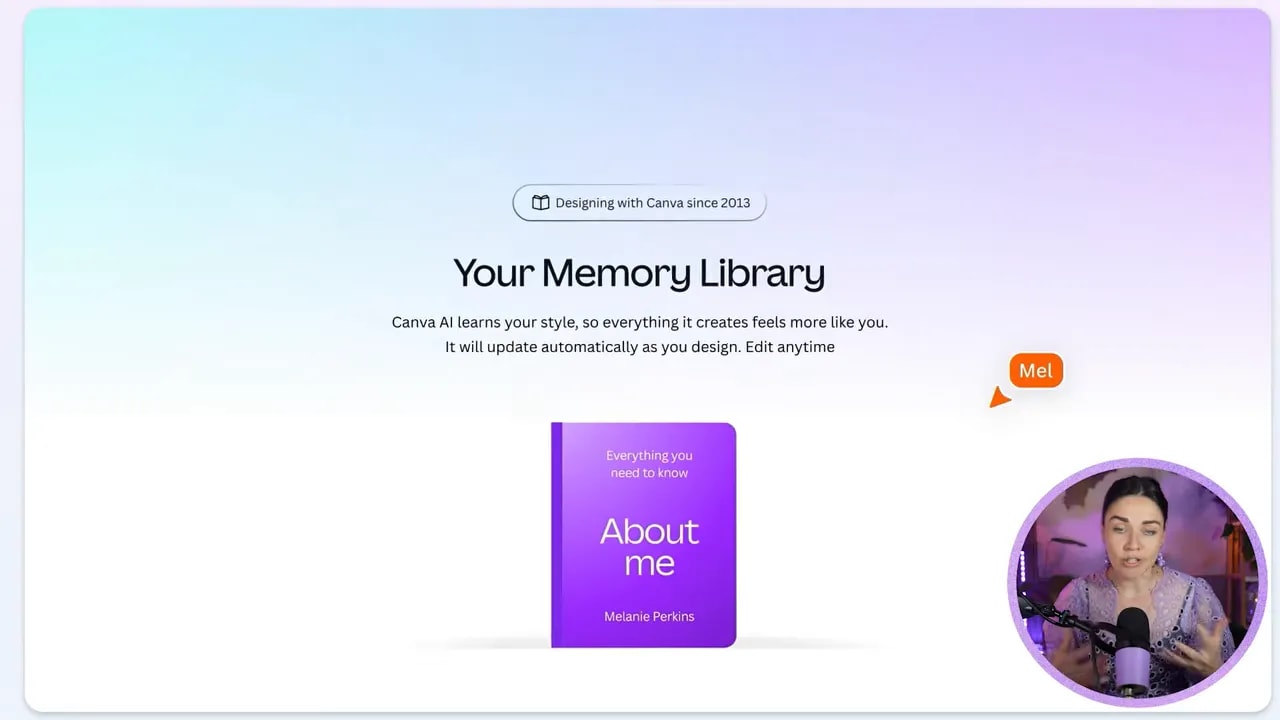
- Build a memory profile of your business and style
That last point is especially interesting. Canva now includes a memory feature so it can remember things about your business, your preferences, and your design style in a similar way to other AI tools.
In theory, that means better outputs over time because Canva has more context about how you work.
Step 2: Connect Canva AI to the assets and apps you already use
One of the most practical parts of Canva AI 2.0 is the new connector setup.
Instead of only prompting Canva with plain text, you can now point it to:
- Your existing Canva designs
- Uploaded files
- Brand kits
- Templates
- Connected apps and their data
That means you are not starting from scratch every time. You can give Canva AI real source material to work from.
One example Canva shared was generating a newsletter by pulling information from recent team conversations in Gmail and Slack. That is clever, especially if you are regularly repurposing internal updates into external content.
Another use case is recurring tasks. You could potentially ask Canva to create social media content every Monday based on updated notes, spreadsheets, or conversations from connected tools.
Now, do I think this is all magically perfect yet? No. AI tools love to make bold promises. The real test is how well they perform once you try to use them in your actual business. But the direction is definitely interesting.
Step 3: Get access to Canva AI 2.0 early if it is not showing up yet
If Canva AI 2.0 is not visible in your account yet, there is a shortcut that may unlock early access.
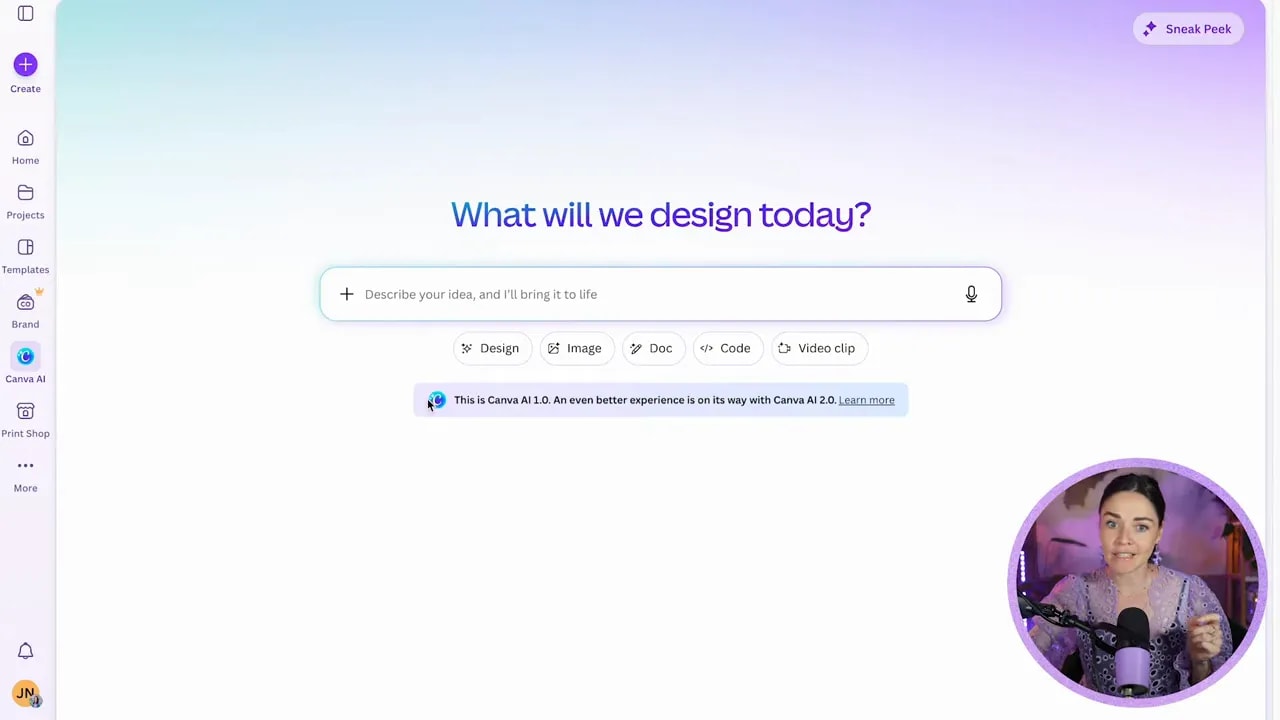
Go to the Canva AI button on your Canva homepage. If you still see the older version, type activate superpowers into the prompt box.
If Canva has enabled early access for your account, that should switch you over to the new experience.
You will know you are in the new version if you see the 2.0 label and prompts related to building your memory profile.
Step 4: Use Canva AI inside an existing design, not just from the homepage
This is where Canva AI gets more useful.
Yes, you can open Canva AI and ask it to make something from scratch. But in practice, a much stronger workflow is opening one of your existing designs and prompting AI from inside it.
That lets Canva work from your current layout, your existing design style, and your chosen assets.
For example, one test involved asking Canva to create social media posts based on a piece of content already stored in a Canva doc. Another test asked it to add several new pages to an existing social media carousel while keeping the same visual style.
That second use was much more impressive.
It took the current design style, used the uploaded images, built out multiple new pages, and produced a set of carousel slides that were honestly close to usable with just a few tweaks.
That matters because for small business owners, the dream is not AI making perfect final graphics. The dream is AI getting you 70 to 85 percent of the way there so you can polish and publish faster.
Step 5: Expect a few glitches and know the workaround
During testing, Canva AI threw errors a lot. Like, a lot a lot.
The odd part was that many of those errors did not seem to reflect a real failure. Typing continue usually pushed the task forward and the tool kept going.
So if you are trying Canva AI 2.0 right now and it feels a bit wobbly, that is not just you. It still feels like an early-stage release in places.
Also worth noting, there are usage limits. Canva is offering AI access levels similar to other platforms, and if you use it heavily you may need the AI add-on for more capacity. At the time of recording, that extra allowance was positioned as an optional paid upgrade rather than something required for basic use.
Step 6: Skip Learn Grid unless education is central to your business
One of the big keynote announcements was Learn Grid. This is more focused on education and course delivery.
If you are a teacher or your business heavily revolves around learning experiences, it may be worth exploring.
But for the average small business owner creating social media, lead magnets, client resources, and marketing graphics, this is not the update I would spend time on first.
Step 7: Use Canva Offline when your internet is unreliable
This one is surprisingly practical.
Canva now lets you make a design available offline so you can keep editing even when your internet disappears. If you have ever tried working on the road, on patchy Wi-Fi, or in one of those mystery cafés where the internet is more emotional support than actual connection, this is helpful.
To use it:
- Open your design
- Go to File
- Select Make available offline
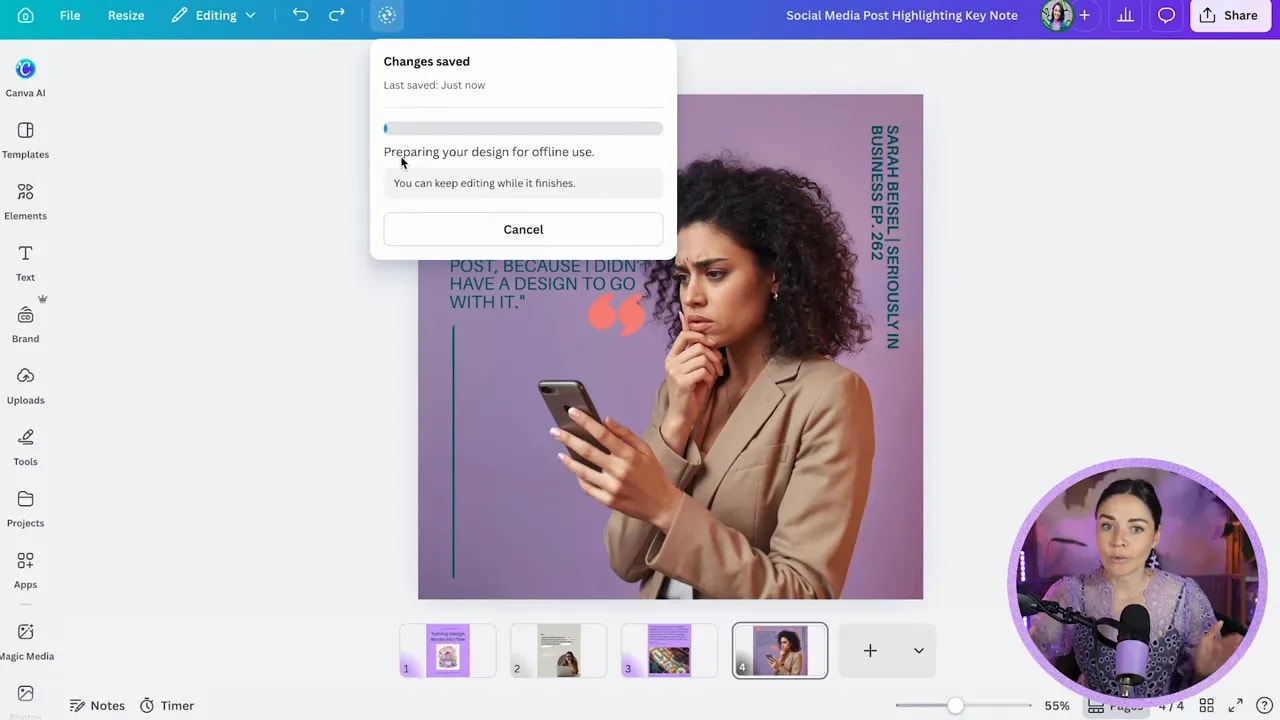
A few caveats:
- You need to enable offline access before you lose reception
- You will not have every Canva feature available
- Anything that relies on online services, such as searching live elements or using AI tools, will not work offline
- Basic editing like changing text or using already-uploaded assets will still work
Once you reconnect, Canva will sync those changes back online.
Step 8: Try Print Shop if you create physical marketing materials
Canva’s Print Shop has been around for a while, but this update makes it feel more robust.
If you create printed business materials like banners, cards, merchandise, or signage, Print Shop makes the workflow a lot smoother because it opens the exact print size you need and shows a live mockup as you design.
That means less guessing, less resizing drama, and less exporting files to third-party printers unless you want to.
You can access it from the left-hand panel on your Canva homepage under Print Shop.
This is one of those updates that will not matter to everyone, but if your business uses physical collateral, it is worth a look.
Step 9: Build reusable branded pieces with Components
This is one of the more interesting smaller updates.
Components let you combine multiple design elements into one reusable branded object. Think of it like creating your own mini design system inside Canva.
For example, you could build:
- A profile card with a photo frame, background shape, and name text
- A callout box you use across presentations
- A testimonial block
- A branded sticker-style graphic
To create one:
- Select all the elements you want grouped into one reusable item
- Right-click
- Choose Create component
- Name it
- Save it to your brand kit if you want ongoing access
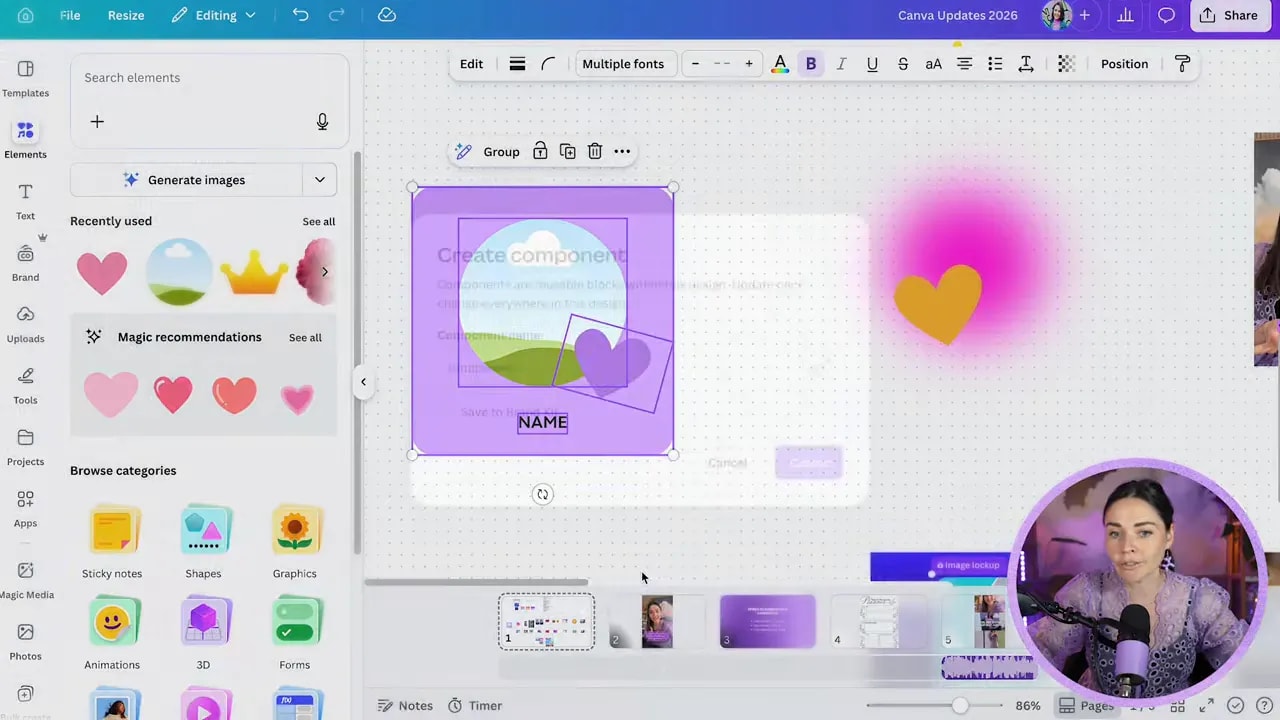
Once saved, you can insert that component into future designs from your brand kit. Better yet, you can update the original source later and manage how those changes carry across.
If you create the same kinds of layouts repeatedly, this could save you a heap of time and help keep your visuals more consistent.
FREE Design Tools to $100k Masterclass
Grow your biz with clever design and Canva hacks that will save you hours and make you sales.
Step 10: Upgrade your short-form content with the new captions effects
Captions inside Canva are not brand new, but the styling options have had a proper upgrade.
If you create Reels, short videos, talking-head content, or tutorials, you can now apply ready-made caption styles with much more visual personality. Instead of manually building animated subtitle looks yourself, you can pick from presets and customise the colours.
The workflow is straightforward:
- Open a video design
- Go to Text
- Select Captions
- Choose a caption style
- Set your colours
- Generate captions
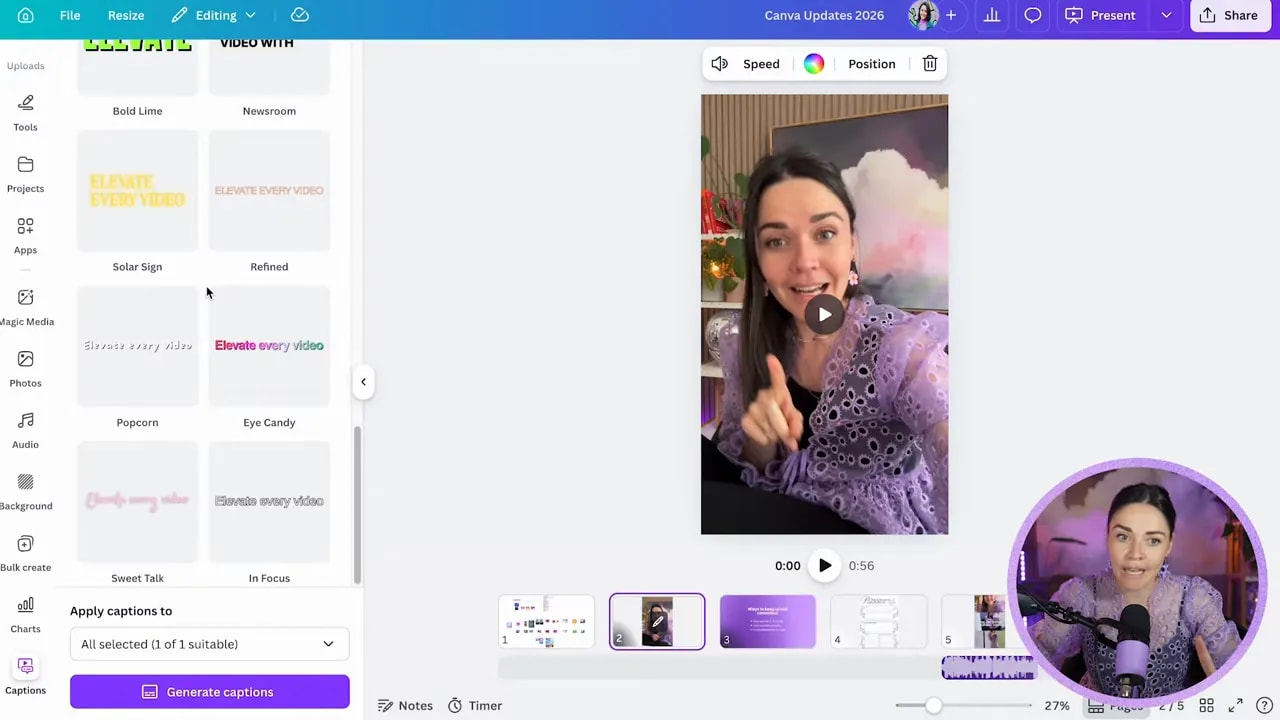
The one frustration is that the caption colour picker does not automatically surface your brand colours right there, which feels mildly rude. But you can still enter your hex codes if needed.
Still, this update makes it much easier to create polished, on-brand video content without jumping to another app.
Step 11: Use image upscaling to rescue low-quality photos
Image upscaling has technically existed in Canva before, but it was tucked away inside apps and felt a bit hidden. Now it is much easier to access directly from the image editing tools.
If you have ever had a photo that is just a bit too blurry, pixelated, or low-res for what you need, this is the update to try.
To use it:
- Select your image
- Click Edit
- Look under Tools
- Choose Upscale
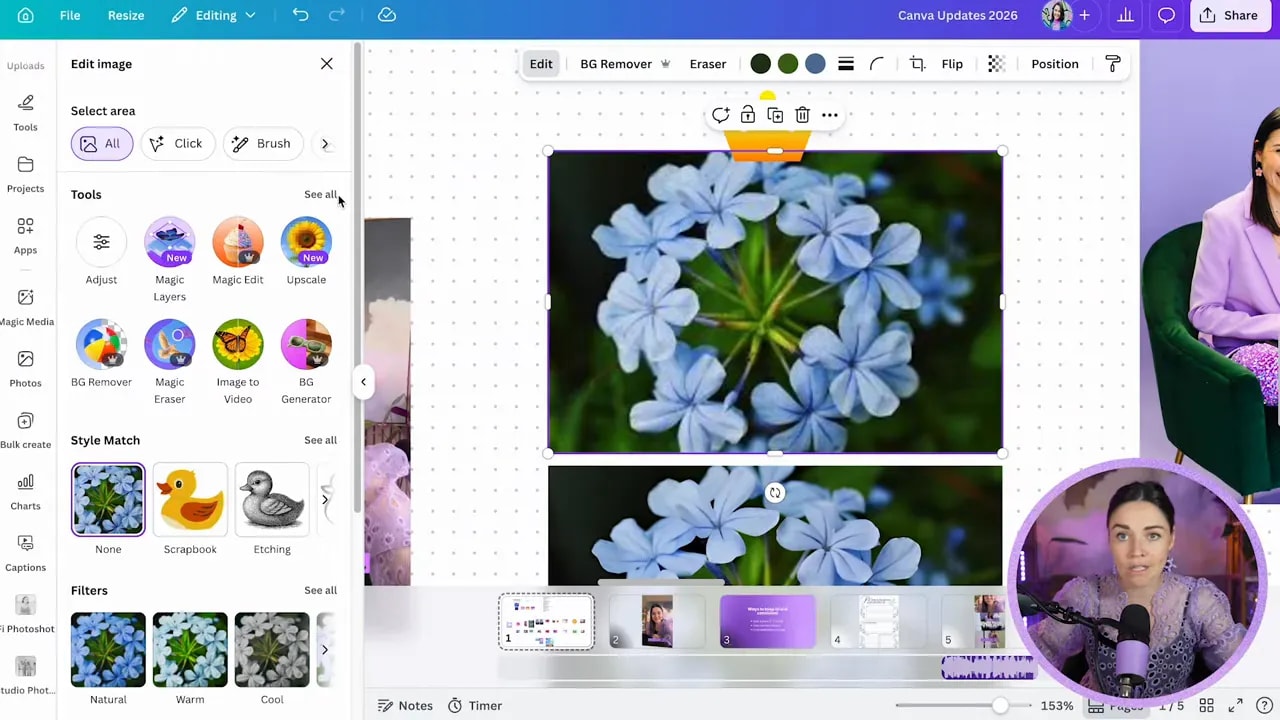
The results are not flawless. AI upscaling can sometimes add a slightly painted look, and occasionally it gets a bit weird. But for many business uses, especially social content or screenshots from calls, it can make an image noticeably cleaner and more usable.
Step 12: Turn photos into short videos with the updated photo-to-video tool
This feature is much better than it used to be.
Canva’s photo to video tool now creates 5-second clips instead of only 3-second ones, and it can now handle faces. That is a pretty big jump in usefulness.
Previously, if you tried using a portrait photo, Canva often refused. Now it is more willing to animate photos of people, which opens up better options for social content, promos, and storytelling posts.
To use it:
- Select a photo
- Click Edit
- Choose Image to video or Photo to video
- Either let Canva decide the motion or type a custom prompt
- Generate the clip
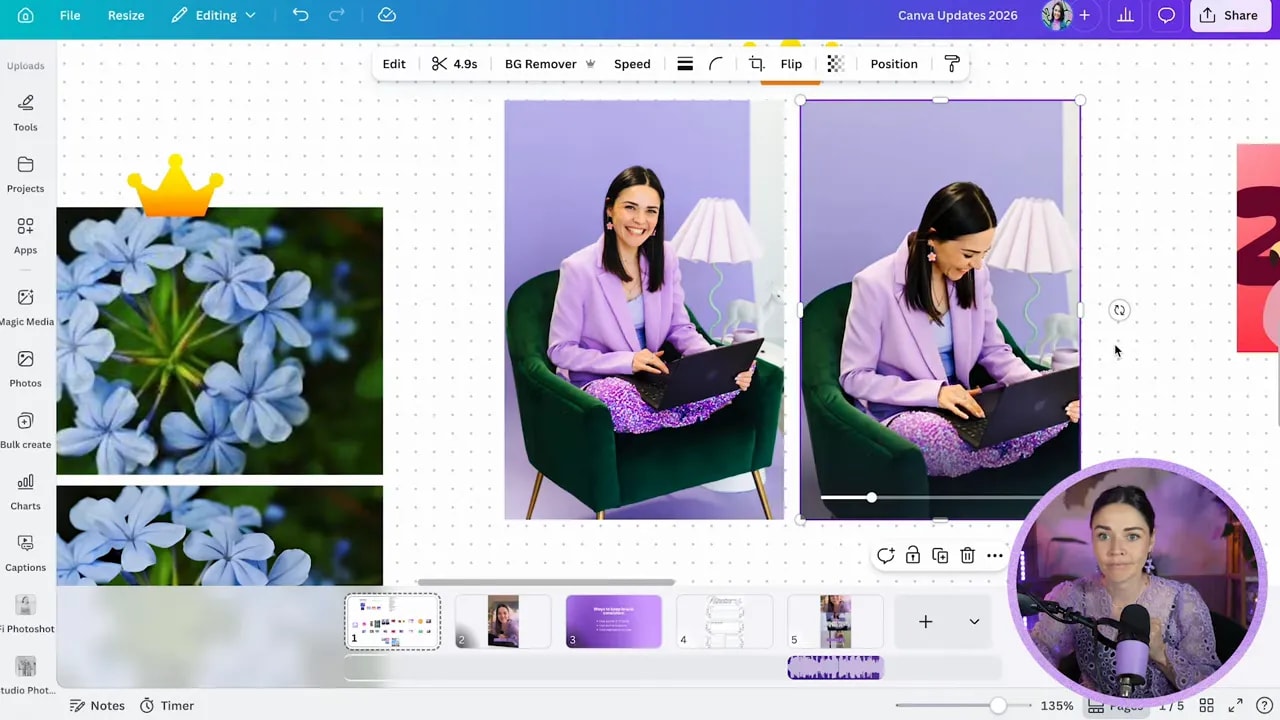
The outputs can be funny. Sometimes brilliant. Sometimes slightly cursed. But for turning a static brand photo into something with movement, this is one of the more creative updates in the release.
Step 13: Use Decorate to add themed graphics to a page automatically
Decorate is another Canva Pro feature and a fun one if you want AI help styling a layout.
Instead of editing just an image, you can tell Canva to decorate an entire page based on a prompt. For example, you might ask it to add social-media-style graphics, flowers, or seasonal motifs to a slide.
The useful part is this: the added graphics are still editable layers, not flattened background magic that you cannot touch.
So if Canva gives you a good starting point, you can tweak, remove, or reposition the pieces as needed.
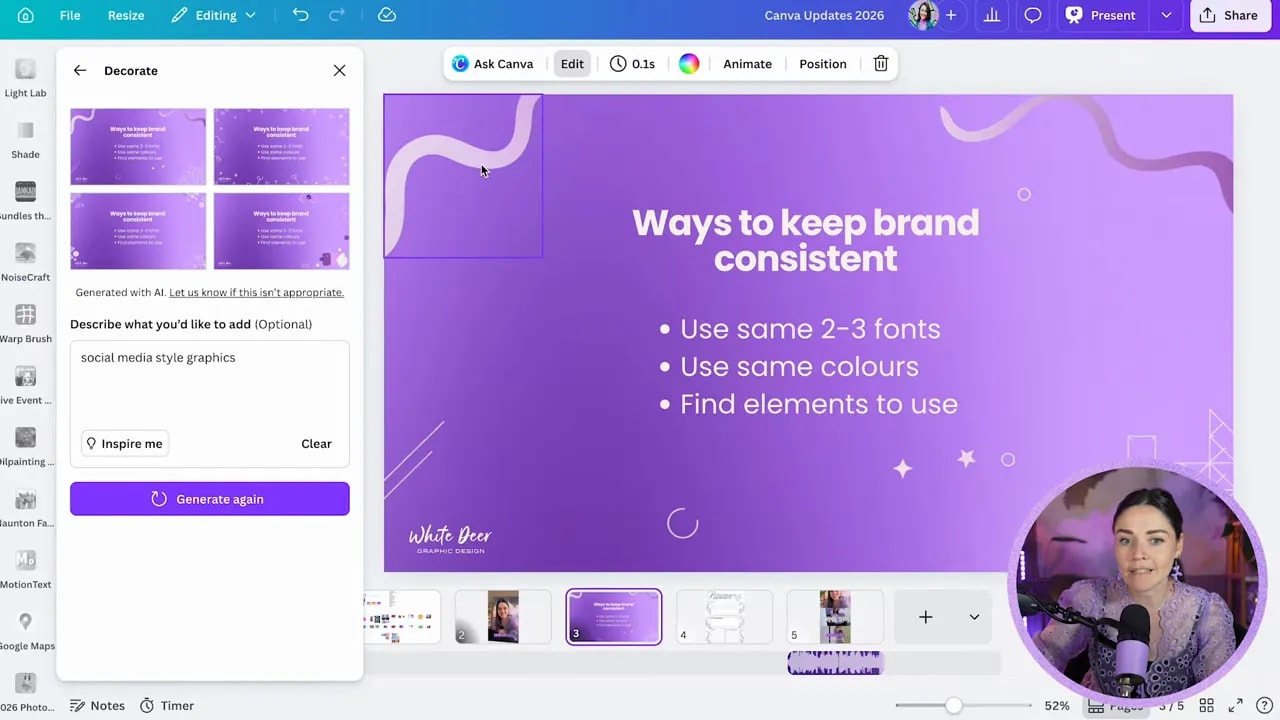
It is not always going to read your mind, but it can speed up the styling process when you want a little extra visual interest without hunting through elements manually.
Step 14: Copy a graphic style onto a photo
This is one of those smaller updates that is weirdly exciting.
Canva already had a style-copying feature for element-to-element editing. Now it can also apply the style of an element to a photo.
That means you can take a graphic style you like and transfer that look to an image with a couple of clicks.
For playful brands, kid-focused businesses, quirky campaigns, or just experimenting with creative visuals, this opens up some fun possibilities.
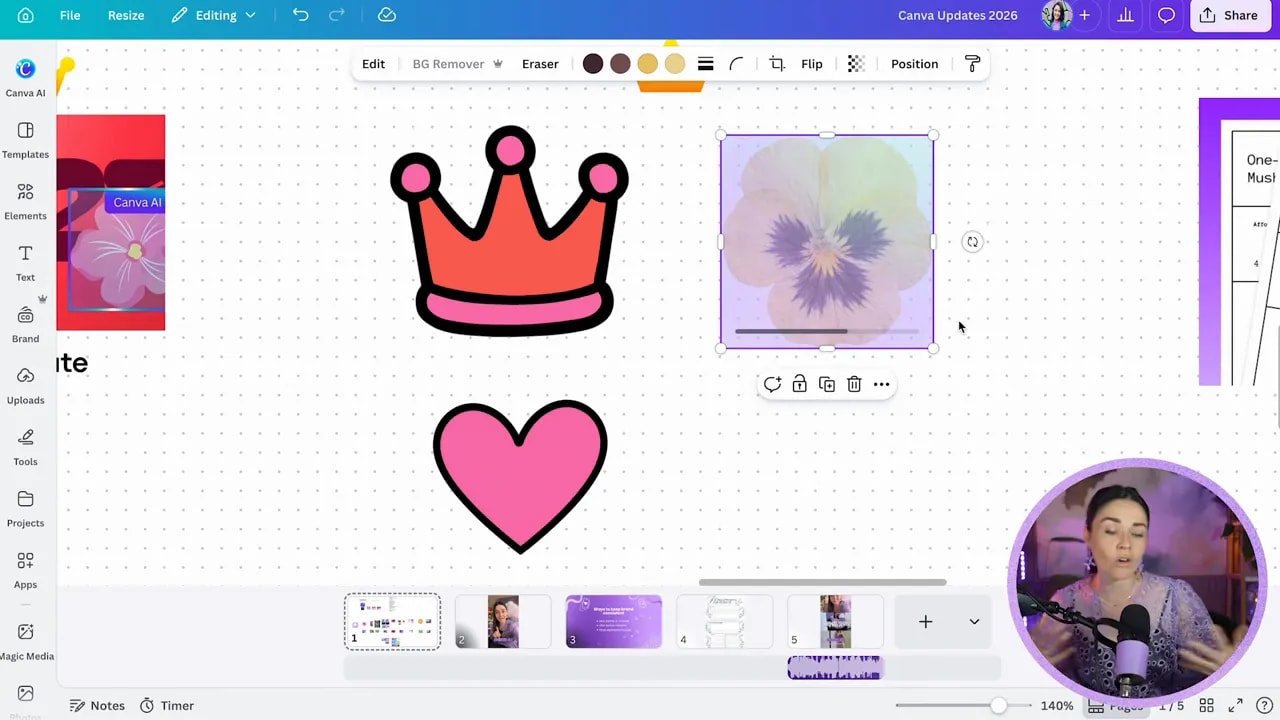
It is not necessarily a feature you will use every day, but when you want something a little more custom and eye-catching, it is a cool addition.
Step 15: Print directly from Canva when you do not need a downloaded file
Another simple but handy update is the ability to print directly from your design without downloading it first.
To do that:
- Click Share
- Select See all if needed
- Choose Use my printer
That is not a life-changing feature, but it is useful for quick printing jobs like worksheets, internal docs, planners, checklists, or meeting materials when you do not want extra files cluttering your computer.
Step 16: Add effects to shapes and text much faster
Canva now gives you more built-in effects for shapes and stickers, and there are also advanced text effects you can use without needing to build them manually.
For shapes, you can apply styles like:
- Glitch
- Glow
- Echo
- Retro
- Digital
- VHS
- Sunset
- Laser
- Metallic
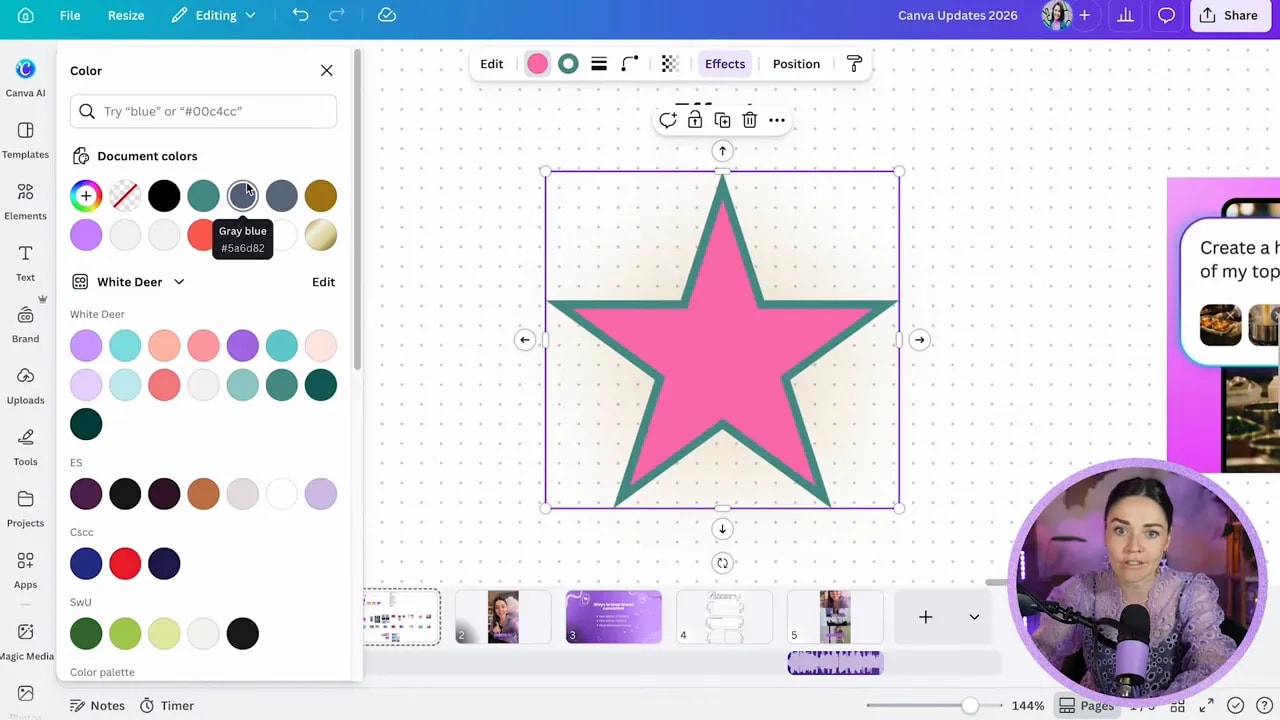
For text, you also get extra effect options that can give a more stylised or dimensional look quickly.
If you create playful social posts, launches, promo graphics, or content with a bold visual vibe, these effects are an easy win.
Step 17: Let Magic Video assemble footage into a rough first edit
If you have a bunch of clips and want Canva to help turn them into a video draft, Magic Video is worth testing.
You can upload multiple pieces of media, describe the story or message you want, and Canva will generate several video options using templates, timing, text, and layout suggestions.
The rough process looks like this:
- Open a video design
- Go to Templates
- Select Magic Video
- Upload your clips
- Describe the video you want
- Review the generated options
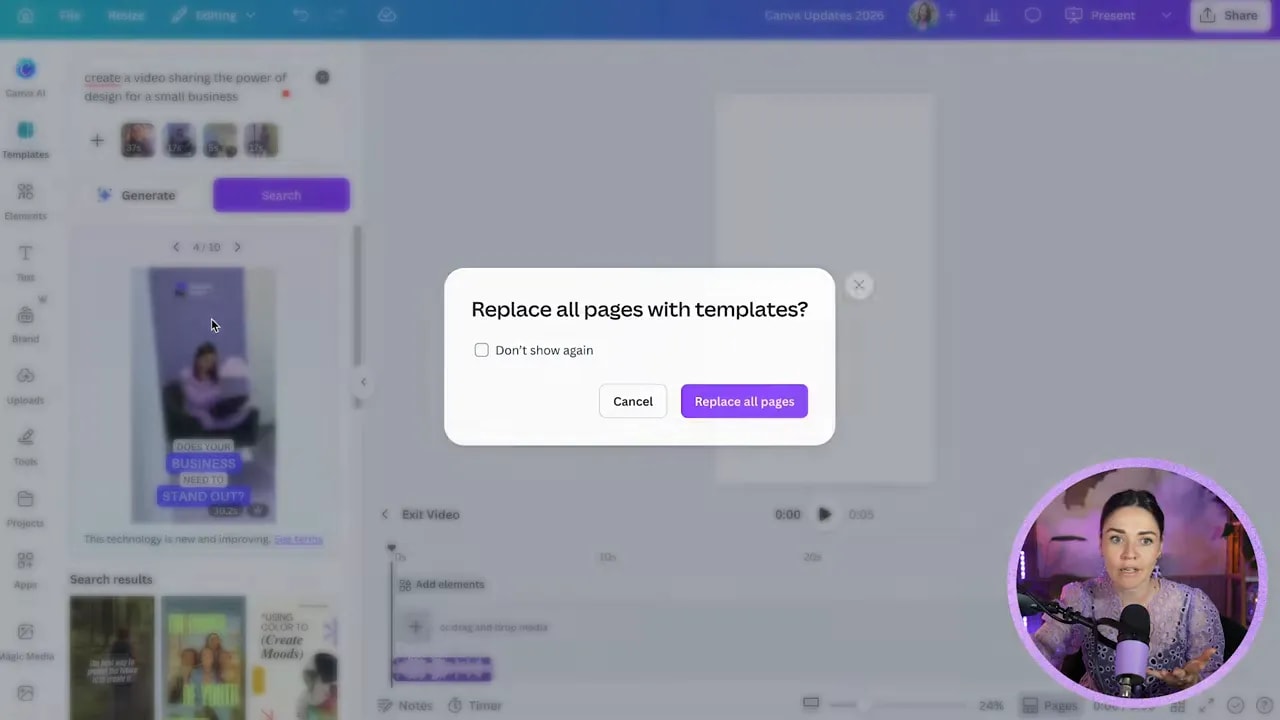
The result may not be publish-ready. In testing, some versions did a decent job pulling clips together and adding text, but branding was inconsistent and the edits were only okay.
Still, if your biggest hurdle is getting started, this can be a helpful first draft tool.
Step 18: Keep an eye on the coming-soon features
There are a few updates Canva announced that were not fully available yet but are worth watching.
- 3D object generation, which will let you create 3D assets on demand
- AI-generated sound effects, useful when the current library does not have what you need
- Style-based image generation, which is one of the most exciting ideas in the whole release
That last one matters especially for brand consistency. Instead of asking AI to make a generic flower, you will be able to ask it to create a flower in your specific visual style. If Canva nails that, it could be genuinely powerful.
Step 19: Do not overlook the smaller workflow improvements
Sometimes the flashy updates get all the attention, but the practical little upgrades can make a bigger difference over time.
A few more worth noting:
- Email design integrations with platforms like Mailchimp, Klaviyo, and Flodesk
- AI help turning spreadsheet data into presentations
- Upgrades to Canva spreadsheets, including private filters, grouped rows, and hidden columns
- More advanced branded forms
- Expanded libraries of video hooks, templates, and effects
- More flexible brand kit options for teams using different variations of the same brand
These are the kinds of updates that do not always sound dramatic, but if they slot neatly into your workflow, they can save real time.
Step 20: Focus on the updates that solve your actual bottlenecks
If I were prioritising these as a small business owner, I would start with:
- Canva AI 2.0 for content generation and design assistance
- Components for repeatable brand consistency
- Captions for short-form video content
- Upscaling for improving lower-quality assets
- Photo to video for more dynamic content
- Offline mode for practical flexibility
Not because they are the flashiest, but because they are the ones most likely to help in everyday business use.
The big thing to remember is this. Learning the new buttons is one thing. Using Canva strategically is another.
If your designs still are not looking polished or helping your business convert, the answer is not just more features. It is learning how to use the right features with intention.
If that is where you are at, the free Canva masterclass is a great next step. And if you want to test some of the Pro-only tools mentioned here, you can try Canva Pro first and see which ones actually earn their place in your workflow.