












You would think adding a link to Instagram would be wildly easy. Pop it in a post, people tap it, land on your website, purchase your product, and everyone is right as rain.
Unfortunately, Instagram does not work that way. A URL in a feed caption is not clickable, and neither is a web address written onto your graphic. So if you want to send people to your website, a booking page, a blog post, a product, or a free resource, you need to use Instagram’s actual clickable-link options.
There are three really useful ways to do it: links in your bio, Instagram Story link stickers, and keyword-triggered DM automations.
Table of Contents
- Step 1: Stop using links that nobody can click
- Step 2: Add up to five links to your Instagram bio
- Step 3: Use a clickable link sticker in Instagram Stories
- Step 4: Send links automatically with a comment keyword DM automation
- Step 5: Choose the best clickable link option for the job
Step 1: Stop using links that nobody can click
Before setting up clickable links, make sure you are not relying on methods that create extra work for your audience.
You can paste a URL into an Instagram caption, but it will display as ordinary text. It is not hyperlinked, which means people cannot tap it and immediately visit the page.
For somebody to use that URL, they would need to remember it, open their browser, type it in manually, and press enter. Realistically, very few people will go to that much effort.
The same goes for putting a URL directly on an Instagram image. Posts are not clickable, so even if your website address is beautifully designed into the graphic, it cannot take someone anywhere with one tap.
Links in captions can work on platforms such as Facebook and LinkedIn, but for Instagram, make your calls to action as friction-free as possible. Use one of the three options below instead.
Step 2: Add up to five links to your Instagram bio
A link in bio is the most familiar way to share a clickable destination on Instagram. It sits on your profile underneath your bio text, where people can tap it to access the links you have chosen to share.
This is perfect when you want to direct people to something ongoing, such as:
- Your website
- A booking or enquiry page
- A current offer
- A key blog post
- A free resource or lead magnet
You can add up to five links directly in Instagram. Then, when creating a post, simply tell people to head to the link in your bio.
How to add a link in your Instagram bio
- Open Instagram and tap your profile picture in the bottom-right corner.
- Tap Edit profile.
- Choose Links.
- Tap Add external link.
- Paste in the URL you want to share.
- Add a clear title, such as My website, rather than leaving people with a long, messy URL.
- Toggle on the option to make it your primary link if it is the one you most want to highlight.
- Tap Done.
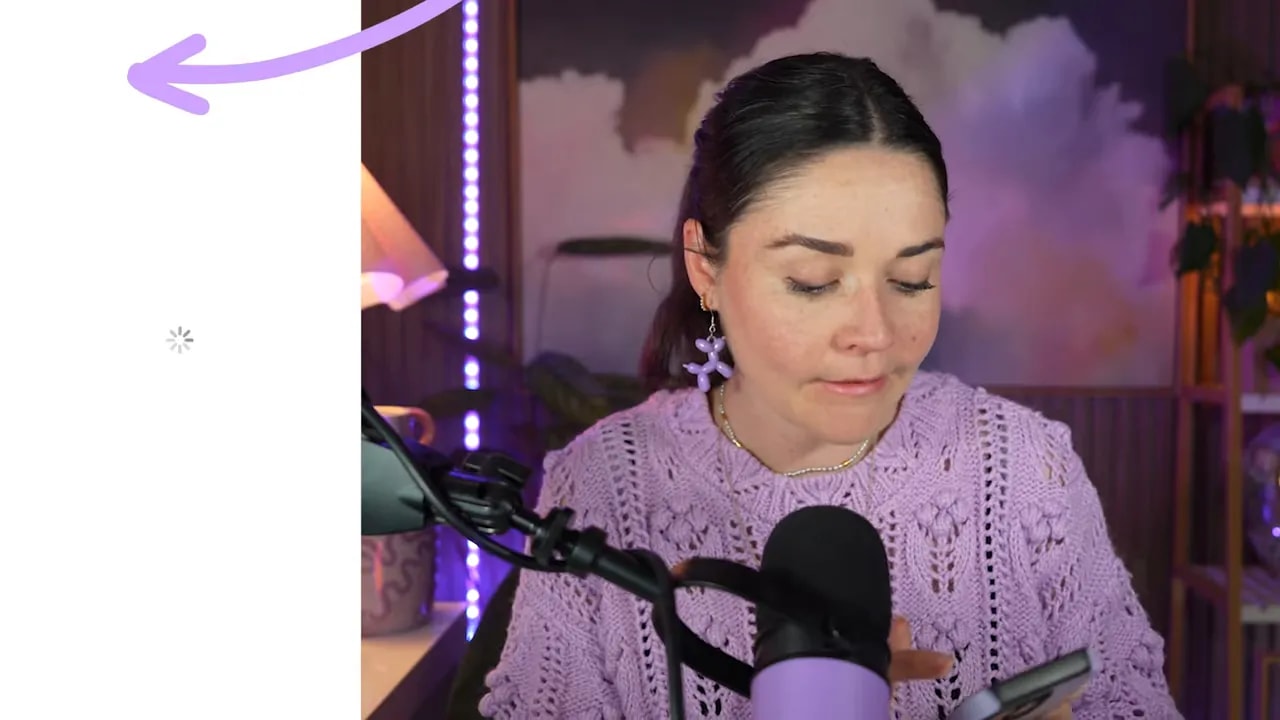
You can also add an image to the link preview, such as your business logo, a photo of you, or an image related to the page. This helps the links feel more intentional and recognisable.
Once you have added multiple links, Instagram displays a link preview on your profile. When someone taps it, they can select the exact destination they need, and the page opens straight away.
Use profile banners where relevant
Inside the same Edit Profile area, you may also see a Banners option. This lets you display connected Meta destinations, such as a Facebook Page, beneath your profile links.
It is another handy option if you have an important connected page that makes sense for your audience, but keep your profile focused. The easier it is for people to understand where to tap, the better.
Step 3: Use a clickable link sticker in Instagram Stories
Instagram Stories are one of my favourite places to use a link because they are often where your warmest audience spends time with you. Stories are full-screen, usually a little less polished than a feed post, and disappear after 24 hours unless you save them to Highlights.
A link sticker lets someone tap straight through to your URL from inside the Story. It is simple, immediate, and incredibly useful when you are talking about an offer, sharing a new blog, promoting a resource, or taking people behind the scenes.
How to add a link sticker to an Instagram Story
- Tap the plus icon at the top left of Instagram.
- Select Story.
- Choose a photo or video from your camera roll, or create one on the spot.
- Tap the sticker icon at the top of the Story editor.
- Select Link.
- Paste or type in your URL.
- Tap the checkmark to add the clickable sticker to your Story.
The sticker can be tapped to open your link without people needing to leave Instagram first and hunt for it elsewhere.
Customise the sticker text
Do not settle for a generic sticker that only says “Link.” Instagram lets you add custom sticker text, which gives people context and makes your call to action far more compelling.
For example, instead of “Link,” you could use:
- Visit my website
- Book your call
- Get the free guide
- Read the blog
- Upgrade my brand
The URL remains the same, but the text tells people why they should tap.
FREE Design Tools to $100k Masterclass
Grow your biz with clever design and Canva hacks that will save you hours and make you sales.
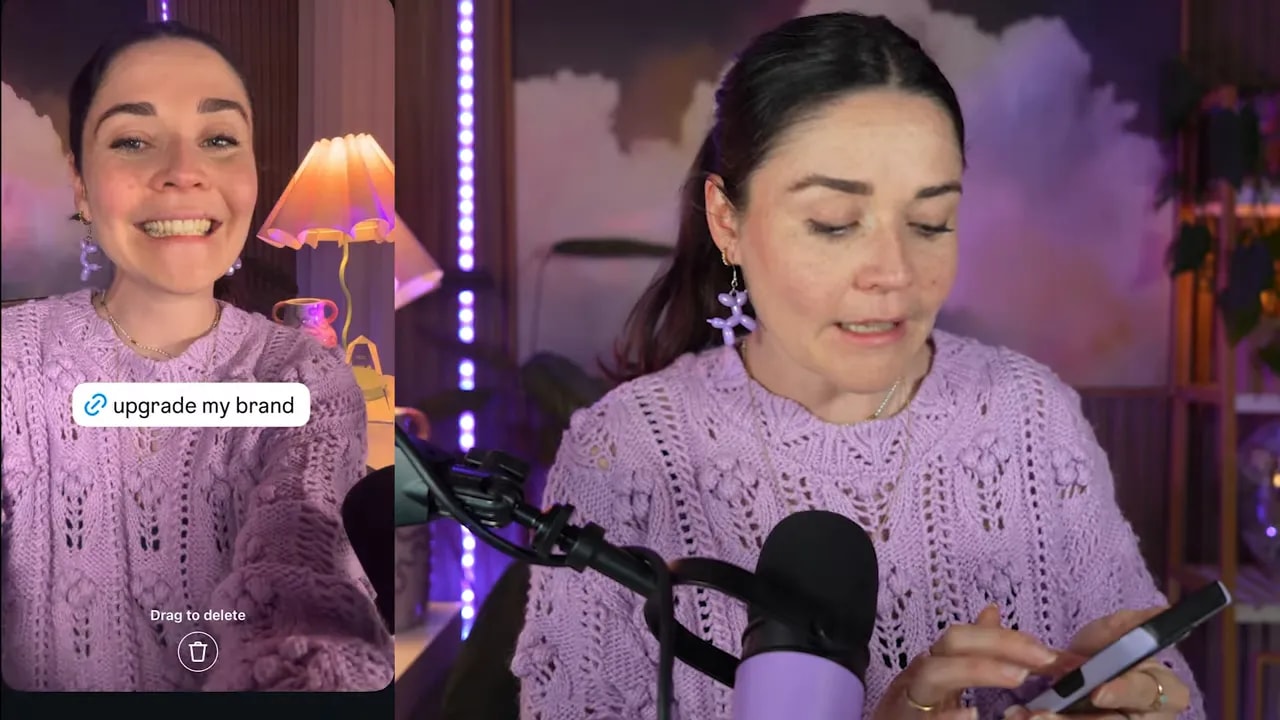
Make the link sticker suit your Story design
You can tap the sticker to cycle through its different display styles, including clear, rainbow, uppercase, and colour variations.
You can also match the sticker to a colour in your Story. Hold the sticker down, drag it to the eyedropper tool, then move the eyedropper over the colour you want to pick up. For example, you could choose a colour from your jumper, a product, or a branded graphic in the Story.
It is a small detail, but it helps the sticker look like it belongs in your content rather than being plonked on top as an afterthought.
Just remember, clickable link stickers are available in Stories, not ordinary Instagram feed posts.
Step 4: Send links automatically with a comment keyword DM automation
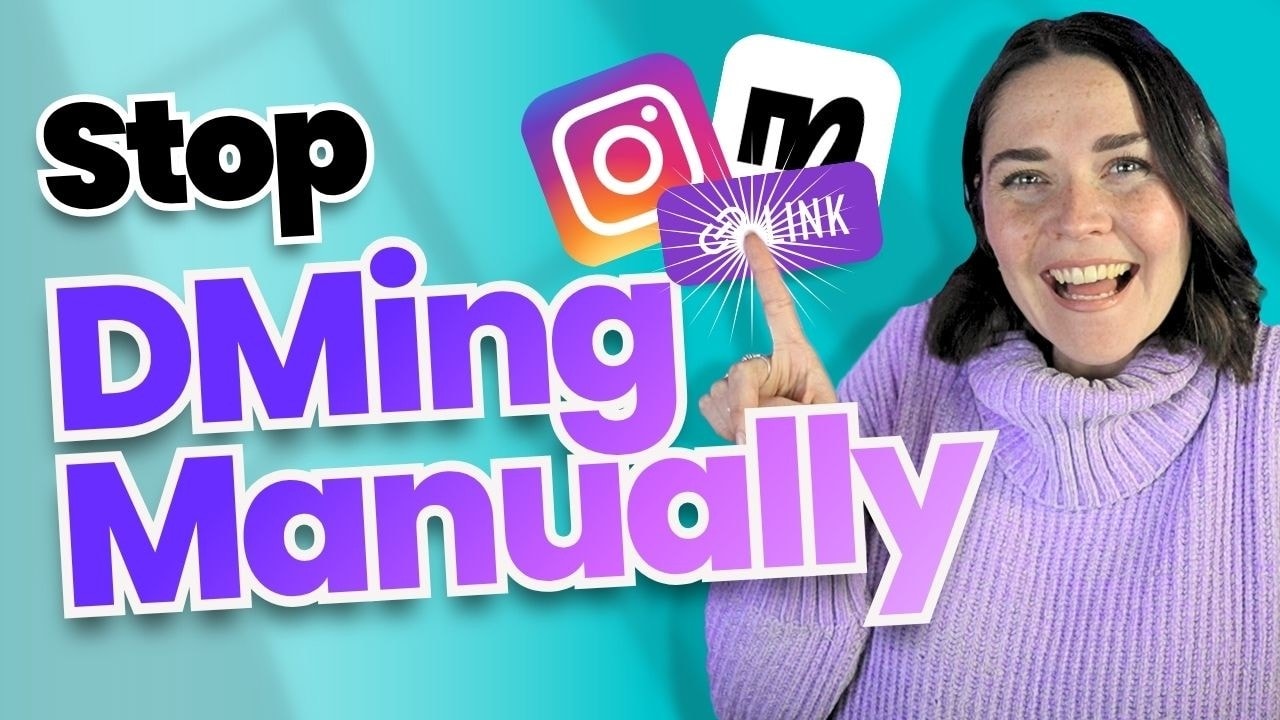
You have probably seen posts that say something like, “Comment GUIDE and I’ll send you the link.” When somebody comments the chosen word, they receive an automated direct message containing the link.
This method works in posts and Stories, and it is brilliant for making sure people receive the resource instantly. The link also stays in their DMs, so they can return to it later instead of needing to remember where they saw it.
When your business is small, you can absolutely do this manually. Somebody comments a keyword, and you send them the link when you get a chance.
But once hundreds of people are commenting, manual replies become a lot. More importantly, people should not have to wait hours for the thing they asked for. This is where automation is incredibly helpful.
Use ManyChat to automate keyword comments
I use ManyChat for Instagram DM automation. It has both free and paid options, and the free option includes one automation, which is plenty if you want to test it for a particular campaign.
In ManyChat, you can set up an automation that triggers when somebody:
- Comments a chosen keyword on a post
- Replies to a Story with a chosen keyword
- Sends you a DM containing a chosen keyword
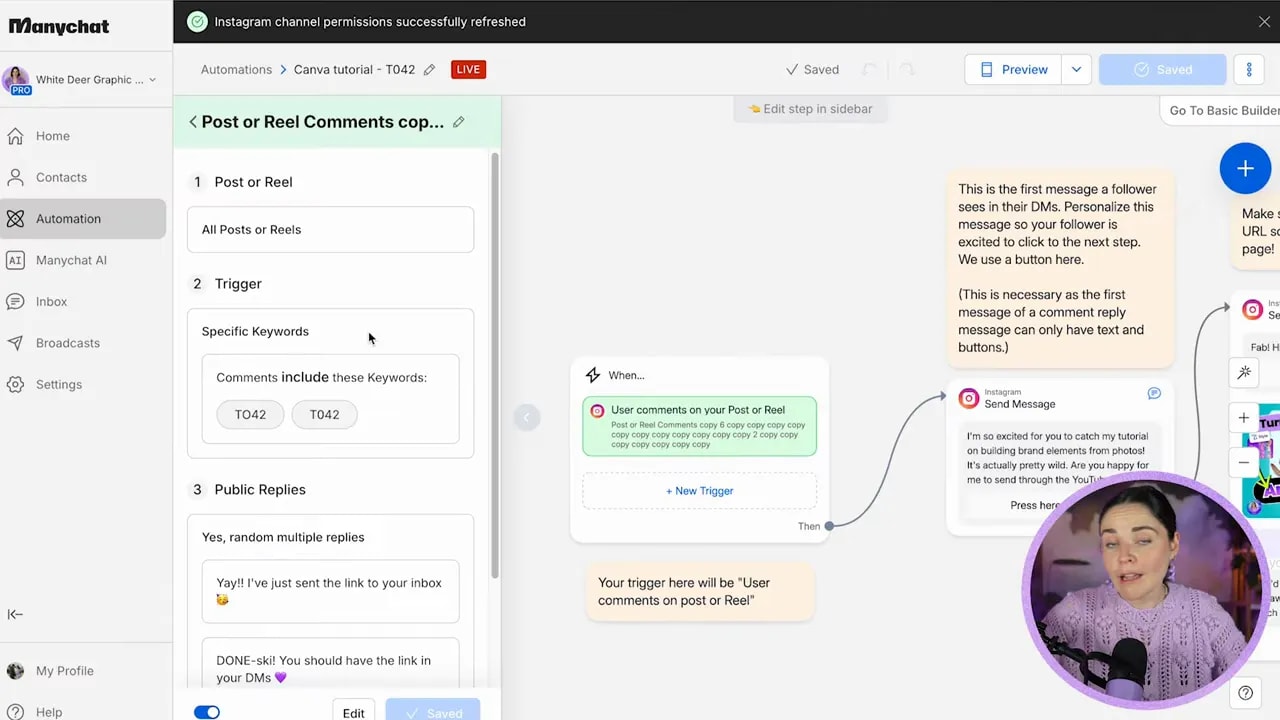
Build a simple comment-to-DM link automation
A basic automation can work like this:
- Create a comment trigger for one post or multiple relevant posts.
- Choose the keyword or phrases that should activate it.
- Set an automatic public reply to the comment if you want one.
- Create a DM that tells the person what they are about to receive.
- Add a button or prompt for them to press.
- Send the link in the next DM message.
- Add an image or graphic if it helps remind them what the tutorial, freebie, or offer is about.
For example, you might have a post inviting people to comment a keyword for a tutorial. When they comment that word, the automation can reply to their comment, send a DM saying you are excited for them to access the tutorial, and then deliver the link with one tap.
The whole experience is immediate, and you are not personally messaging every single person who comments.
Create more advanced lead magnet automations
You can also make the flow more sophisticated. Rather than sending only a link, an automation can ask for a name and email address, then send the requested resource.
This works beautifully for a lead magnet because people can opt in without leaving Instagram to find a separate landing page. They can provide their details right there in the conversation and receive the information immediately.
It removes the back-and-forth of “go here, then go there,” which makes it easier for people to take the next step.
If you only have one major campaign happening, you could use the free automation for that campaign, remove it when it is finished, and create a new one for the next promotion. If you regularly share podcasts, tutorials, resources, and offers, multiple automations can make getting the right link to the right person much easier.
Step 5: Choose the best clickable link option for the job
You do not need to use every method for every piece of content. Pick the option that makes the next step easiest for the person you are trying to help.
- Use a link in bio for your core destinations and links you want available all the time.
- Use a Story link sticker when you are actively talking about something timely and want a quick, direct tap.
- Use a keyword DM automation when you want to deliver a specific resource at scale, start a conversation, or collect details for a lead magnet.
The real goal is not simply getting a URL onto Instagram. It is making it ridiculously easy for someone to go from being interested to taking action.
And if creating Instagram content is the part that has you stuck, the missing piece is often your visual brand, knowing how to create graphics that attract the right people, and knowing how to use Canva quickly. You can join my free Design Tools to $100K masterclass for practical support with creating branded Canva graphics that help your business get seen and make sales.