











You can finally reorder your Instagram grid without deleting a post, reposting it, or losing the engagement it has already earned. If you have ever posted two designs in the wrong order, wanted to bring an important post higher on your profile, or simply wanted to break up a cluster of similar colours, this feature is going to be very handy.
It is a genuinely useful update, especially for business owners who care about how their brand appears at a glance. But there is one important boundary: your Instagram grid should look professional, not painfully perfect. The content you create and the way it performs will always matter more than a flawless visual pattern.
Table of Contents
- Step 1: Check whether Instagram has enabled grid reordering on your account
- Step 2: Decide what needs changing before you start moving posts
- Step 3: Open your Instagram profile grid on your phone
- Step 4: Press and hold the post you want to move
- Step 5: Drag posts into their new positions
- Step 6: Stop when your grid looks professional, not over-curated
- Step 7: Save the new order by exiting the reordering screen
- Step 8: Build a stronger visual brand beyond the Instagram grid
Step 1: Check whether Instagram has enabled grid reordering on your account
Instagram is rolling out the reorder grid feature gradually, so you may not have it on every account immediately. If you cannot find the option yet, keep checking back over the coming weeks and make sure your Instagram app is up to date.
This is a mobile-first feature. Although Instagram can be accessed on desktop, your phone is the best place to find its full settings and profile tools. At the moment, grid reordering is designed to be done in the Instagram mobile app.
Step 2: Decide what needs changing before you start moving posts
First, take a quick look at your profile grid. You are looking for an obvious visual issue, not trying to engineer a museum-worthy feed.
For example, you may have:
- Several posts in the same brand colour sitting directly beside each other.
- A strong team photo or introduction post that would work better higher in the grid.
- Two posts that were published in the wrong order.
- A key graphic that is currently buried lower down your profile.
A small adjustment can make your profile feel more balanced and intentional. In the example below, several purple posts are grouped at the bottom of the grid, so moving one or two of them helps spread that colour through the layout.
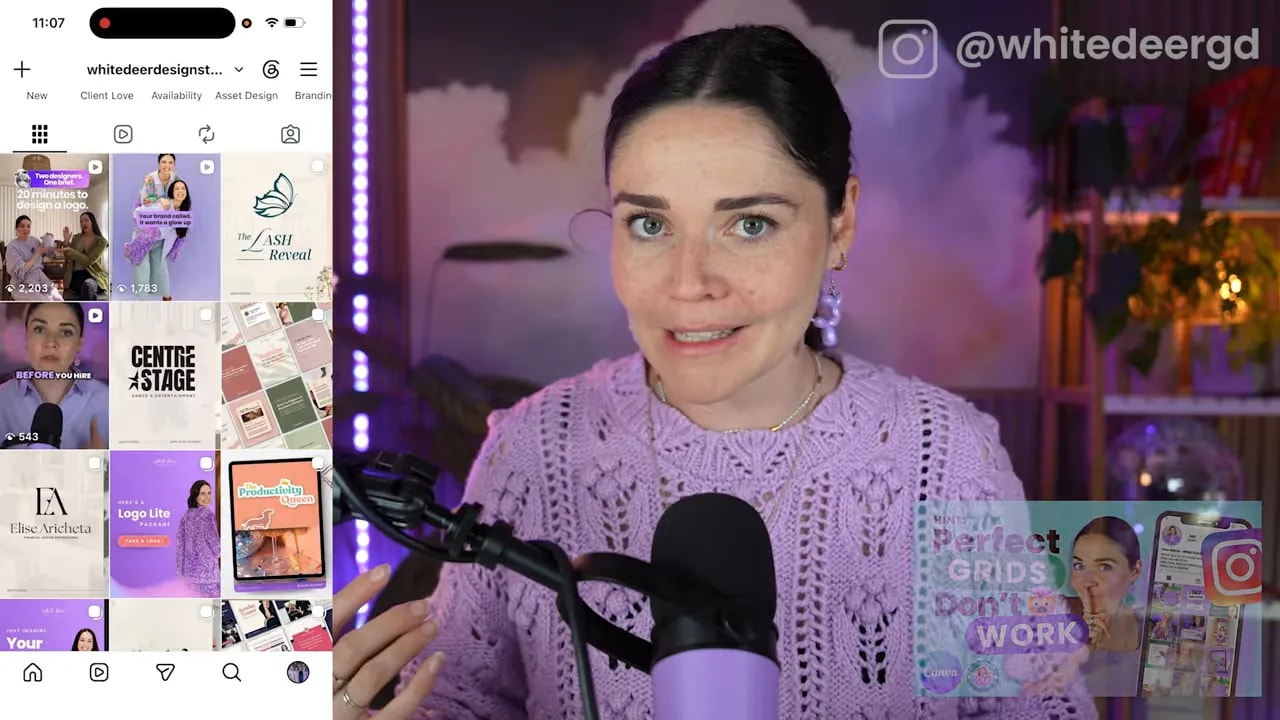
Just do not fall into the trap of spending hours arranging every square. Highly curated grids are not necessarily what people connect with most these days. Real, useful, organic content is far more important than a feed that looks perfect but does not give your audience a reason to engage.
Step 3: Open your Instagram profile grid on your phone
Open Instagram and tap the circular profile icon in the bottom-right corner of the screen. This takes you to your profile grid.
Scroll until you can see the post you want to move. It might be a photo, a Reel cover, a branded graphic, or a carousel. Choose the post that will make the biggest difference to the balance of your grid, rather than trying to move everything at once.
Step 4: Press and hold the post you want to move
Press and hold your finger on the post. Instagram will open a menu with several actions, including options such as removing the post from the grid, pinning it, sharing it, and, crucially, Reorder grid.
Tap Reorder grid to open the grid editing view.
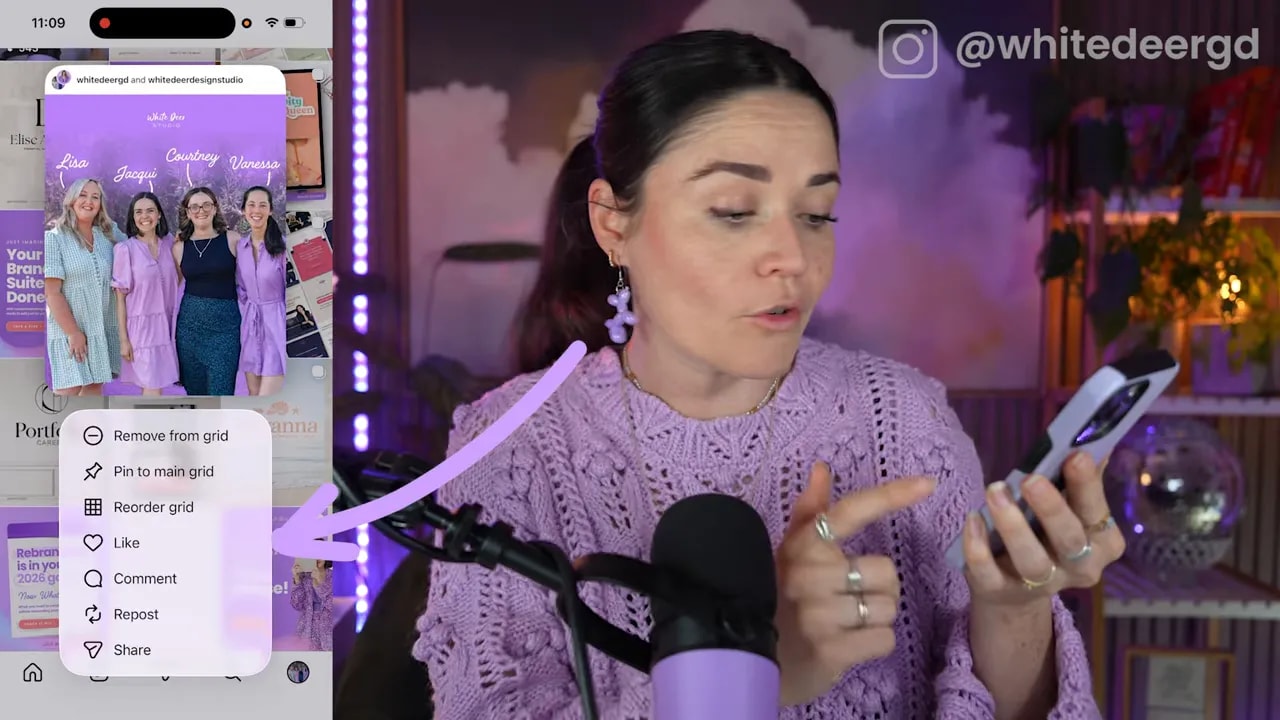
This is the key difference with the new feature: you are not deleting anything. Your original post stays intact, and you do not need to recreate the caption, repost the content, or start the engagement process from scratch.
FREE Design Tools to $100k Masterclass
Grow your biz with clever design and Canva hacks that will save you hours and make you sales.
Step 5: Drag posts into their new positions
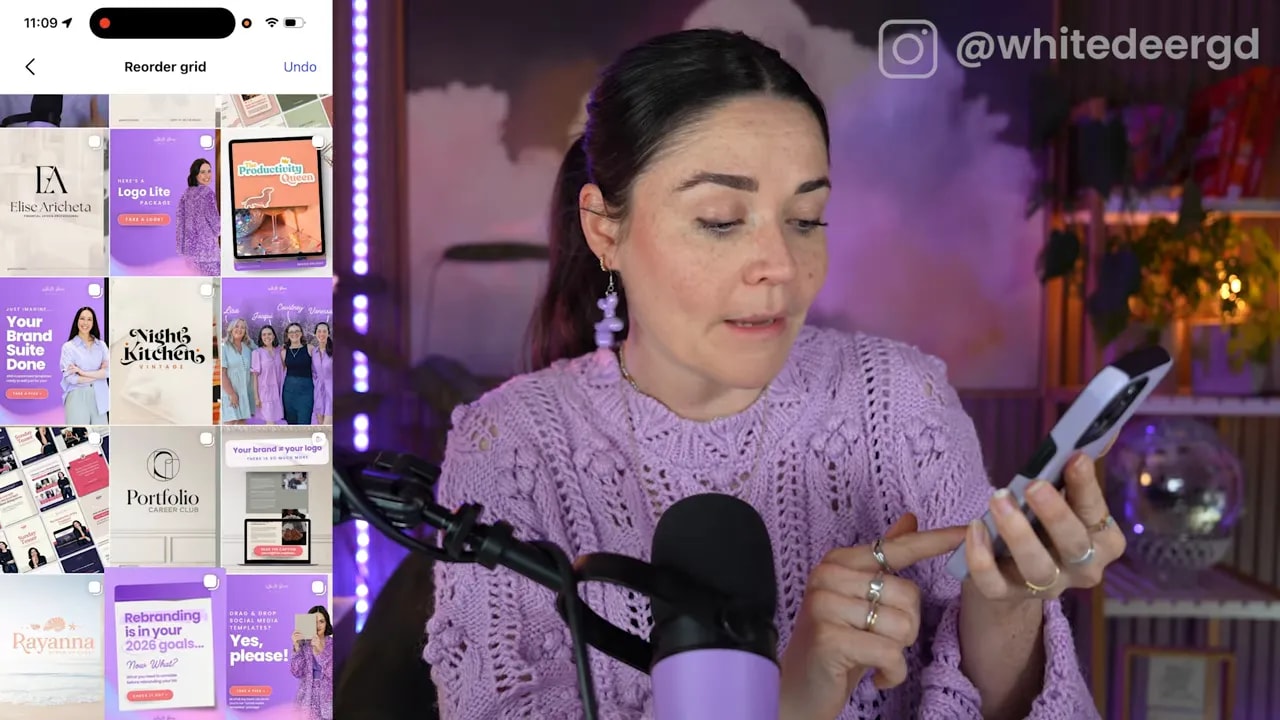
Once you are inside the reorder grid screen, press and hold the post you want to reposition. Then drag it to the place where you would like it to sit.
As you move one post, the surrounding posts shift to make room. You can continue rearranging other posts while you are there. For instance, you might bring a team image higher in the grid and then move a purple design into the newly opened space, creating a little more variety across the profile.
Keep the goal simple: improve the overall balance and make the grid feel polished. You do not need to perfectly alternate colours, content types, or graphic styles.
Step 6: Stop when your grid looks professional, not over-curated
This is the part where it is very easy to overdo it. The feature gives you more control, but that does not mean your grid needs to become another never-ending task on your to-do list.
Your aim is a professional profile that still feels human and connected to your audience. A beautifully balanced feed is lovely, but it is not the whole marketing strategy.
Put your time into posts that actually perform. Create content that helps, educates, entertains, starts conversations, and gives people a reason to care about your business. A post that looks incredible but does nothing for your audience is not more valuable than a simple post that builds genuine connection.
Step 7: Save the new order by exiting the reordering screen
When you are happy with the new arrangement, tap the back arrow to leave the reorder screen. Your profile grid will update to show the new post order.
Have one final look, make sure the key posts are sitting where you want them, and then leave it alone. You have done the useful part without wasting time trying to force perfection.
Step 8: Build a stronger visual brand beyond the Instagram grid
Reordering your Instagram grid is a lovely finishing touch, but strong branding begins with the content and graphics you create in the first place. Your colours, type, templates, imagery, and messaging should make your business recognisable while still leaving room for content that feels real.
If you are creating your own graphics and want them to do more than just look nice, join the free Design Tools to $100K masterclass. You will learn the design mistakes that may be costing you clients, see how to apply your brand to a Canva template, understand what a brand needs to attract the right audience, and pick up Canva shortcuts that can save you serious time.
Use Instagram’s reorder feature to neaten up what is already there. Then get back to creating content that supports your business, connects with your audience, and performs.