











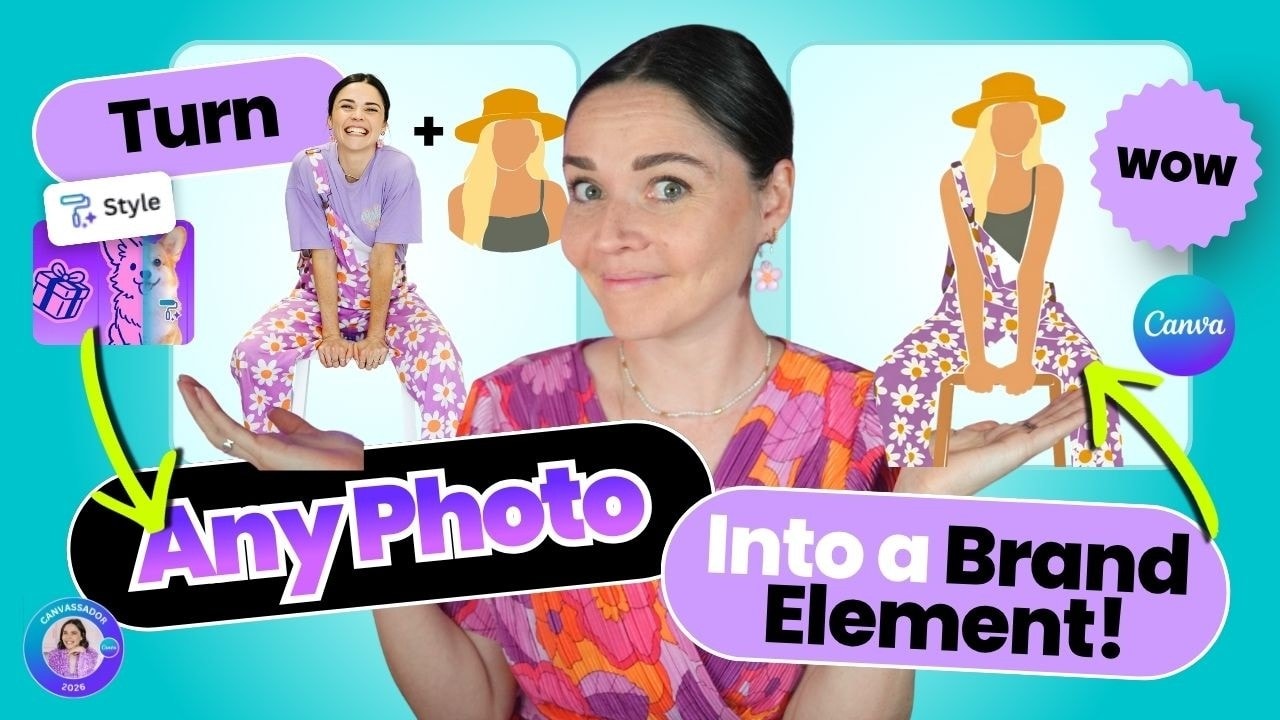
Canva has released plenty of flashy AI updates, but the most exciting feature is not the one that makes a whole design for you. It is the one that can make your brand look more like you.
Canva’s updated Style Match feature now lets you apply the visual style of a graphic element to a photo. That means you can turn a photo of yourself, a product, a stock image, or practically any cut-out image into an illustration that feels like it genuinely belongs in your brand.
That is a very big deal for creating consistent social graphics. You can stop scrolling through Canva trying to find a random element that is close enough to your vibe, then build a set of custom brand elements you can reuse again and again.
Table of Contents
- Step 1: Build your brand before relying on AI
- Step 2: Understand what brand elements are
- Step 3: Choose a reference element with the right visual style
- Step 4: Use Canva’s Copy Art Style feature
- Step 5: Turn a photo into an on-brand illustration
- Step 6: Expect trial and error, then refine the result
- Step 7: Apply Style Match to a real brand, not just a random graphic
- Step 8: Use photos when the subject is too specific for Canva elements
- Step 9: Turn yourself into a reusable brand element
- Step 10: Save your strongest results and use them consistently
- Step 11: Keep the strategy in charge
Step 1: Build your brand before relying on AI
You can have all the AI design tools in the world, but if you do not have a clear and strategic visual brand underneath them, your graphics can quickly start looking like everybody else’s. That is when they become flat, generic, and a little bit AI slop-y.
Your brand needs foundations that guide every creative decision, including:
- Your colour palette
- Your chosen fonts
- Your overall visual mood and personality
- Your ideal audience and the feeling you want them to associate with you
- Your custom brand elements
When those decisions are already made, creating graphics becomes much faster. You are not second-guessing every font, colour, or illustration choice. You simply grab the building blocks that already belong to your brand and create.
Step 2: Understand what brand elements are
Brand elements are the small graphic details that make a design feel recognisable as yours. They are not necessarily your logo. They are the illustrations, textures, doodles, collage pieces, shapes, and visual motifs that give your content character.
For example, one brand may use soft purple glows, blurry textures, playful doodles, and retro collage graphics. Those pieces can show up across social posts, sales graphics, slides, and promotional content. Over time, they make even a simple graphic feel unmistakably connected to the same business.

Brand elements help transform a graphic from a random photo plus some text into something more intentional. They also make design easier because you do not need to start from zero every time you create.
You can use brand elements to:
- Add texture to a plain background
- Highlight key text or calls to action
- Bring playfulness or personality into a layout
- Create visual cohesion across different content topics
- Make your posts easier for people to recognise over time
Step 3: Choose a reference element with the right visual style
Style Match works by taking the art style from one graphic and applying it to another item. So first, choose an existing element that reflects the style you want to repeat.
This reference graphic could have a particular:
- Colour treatment
- Line quality or outline style
- Texture, such as halftone dots
- Illustration style, such as flat, wobbly, hand-drawn, or collage-like
- Overall feeling that suits your brand
For example, a black-and-white retro computer graphic has a bold outline and halftone texture. When its art style is applied to an iceberg element, Canva creates a new iceberg that carries that same black-and-white, textured feeling.
It is important to start with a reference graphic that is genuinely on brand. Style Match is not a replacement for brand strategy. It is a tool that helps you extend a visual direction you have already chosen.
Step 4: Use Canva’s Copy Art Style feature
To apply a style to another graphic element, select your reference element in Canva. In the top editing panel, choose the Copy style button.
You will see two choices:
- Copy basic style, which is useful for things such as colours and text formatting
- Copy art style, which is the AI-powered option you want for this technique
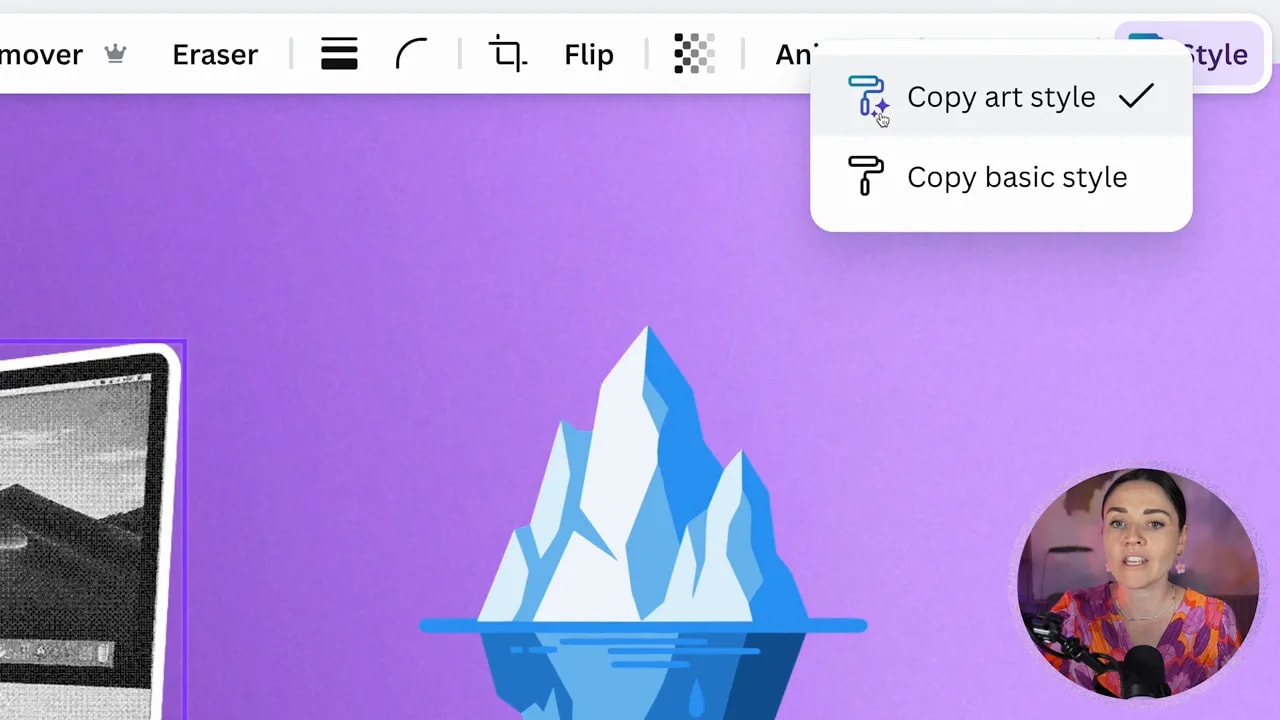
Choose Copy art style. Your cursor will change into a paint roller with a little sparkle, showing that Canva has copied the visual style of your selected reference.
Then hover over the element you want to transform and click it. Canva will process the image and generate a new version based on the reference style.
Sometimes it will nail the result immediately. Other times, you may need to do a little tidy-up yourself. For instance, if Canva does not include an outline, you can add one manually through Canva’s editing and shadow options.
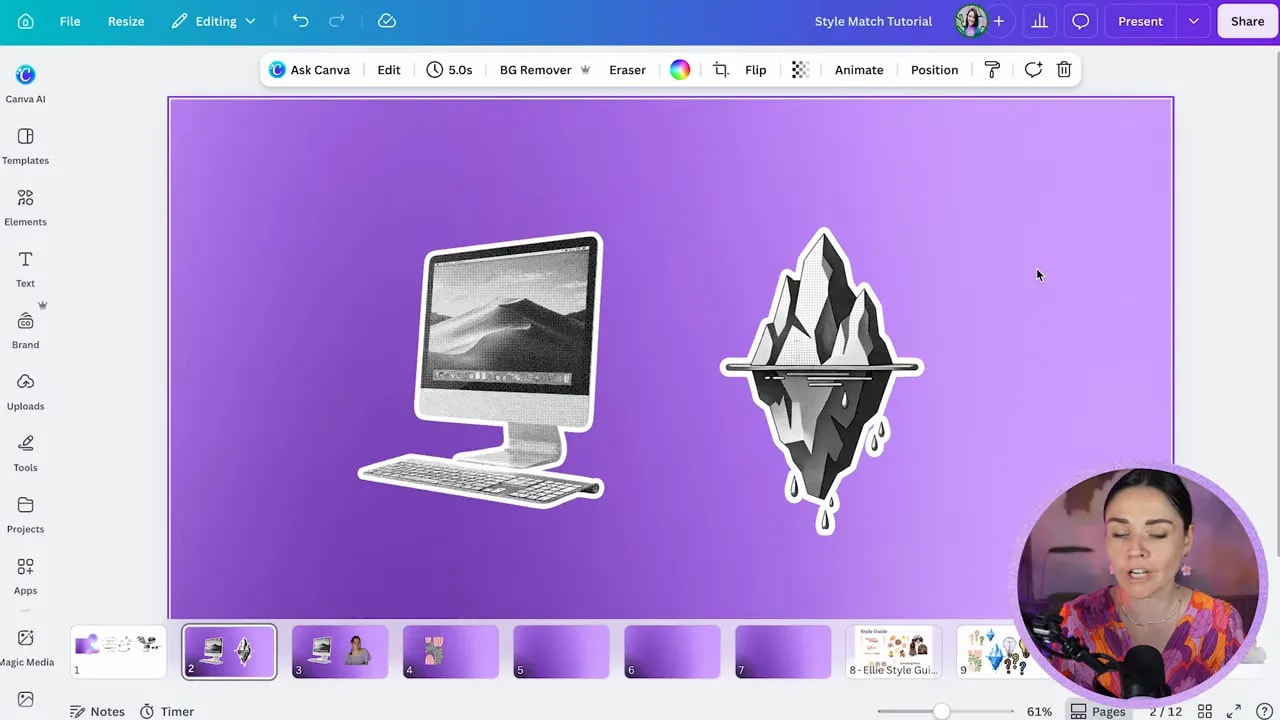
Step 5: Turn a photo into an on-brand illustration
This is where the new update becomes seriously exciting. Style Match can now work with photos, not only with Canva graphic elements.
Start with a photo that has had its background removed. It does not need to be a perfect professional photo for this to work, although a clean cut-out will generally give Canva a clearer starting point.
Then follow the exact same process:
- Select the graphic element whose style you want to copy.
- Click Copy style.
- Select Copy art style.
- Click your cut-out photo.
- Wait while Canva generates the stylised version.
Canva can take a regular photo and apply the colours, texture, and illustrative qualities of your reference graphic. In the example below, a photo becomes a black-and-white illustrated portrait with the same textured visual feel as the retro computer element.
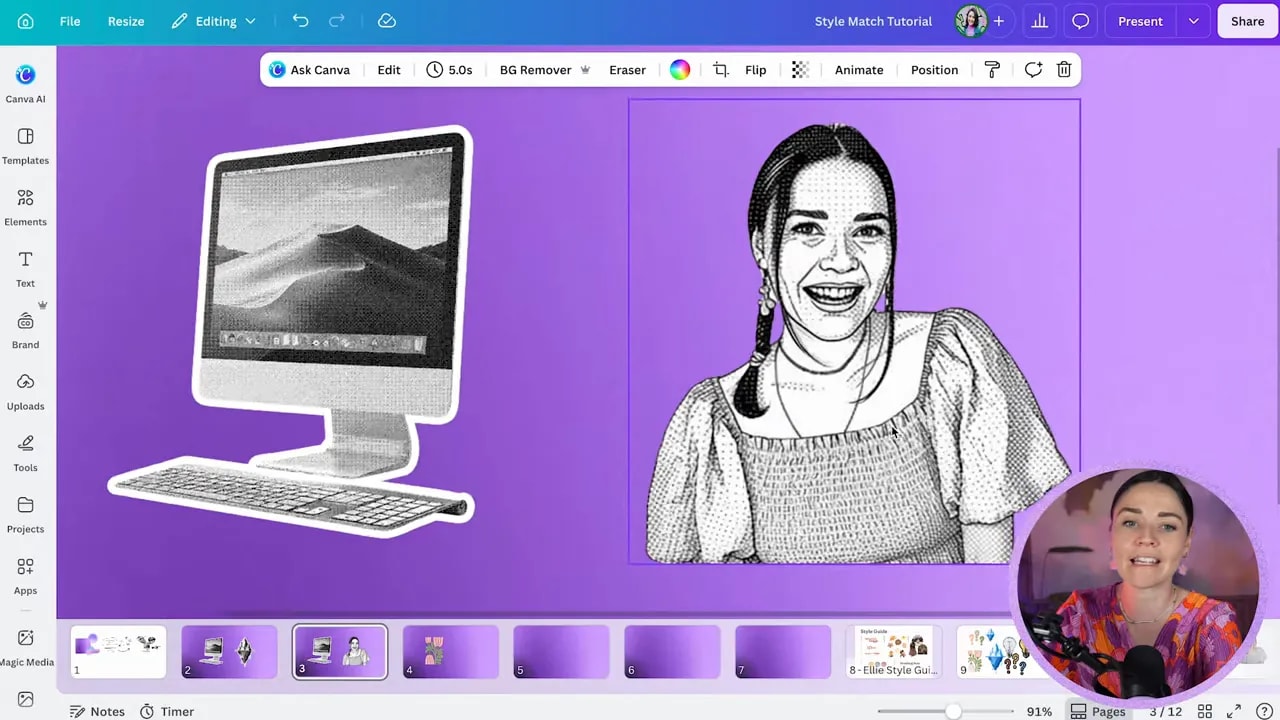
This gives you a completely new way to create custom brand assets. A photo of you can become an illustration. A photo of a client can become an illustration. A product photo or a photo you have taken yourself can become a consistent part of your visual world.
Step 6: Expect trial and error, then refine the result
Because this is an AI feature, the outcome will not always be perfect. Some photos will translate beautifully, while others may feel a little funky. Photos contain much more visual detail than simple graphic elements, so Canva has more to interpret.
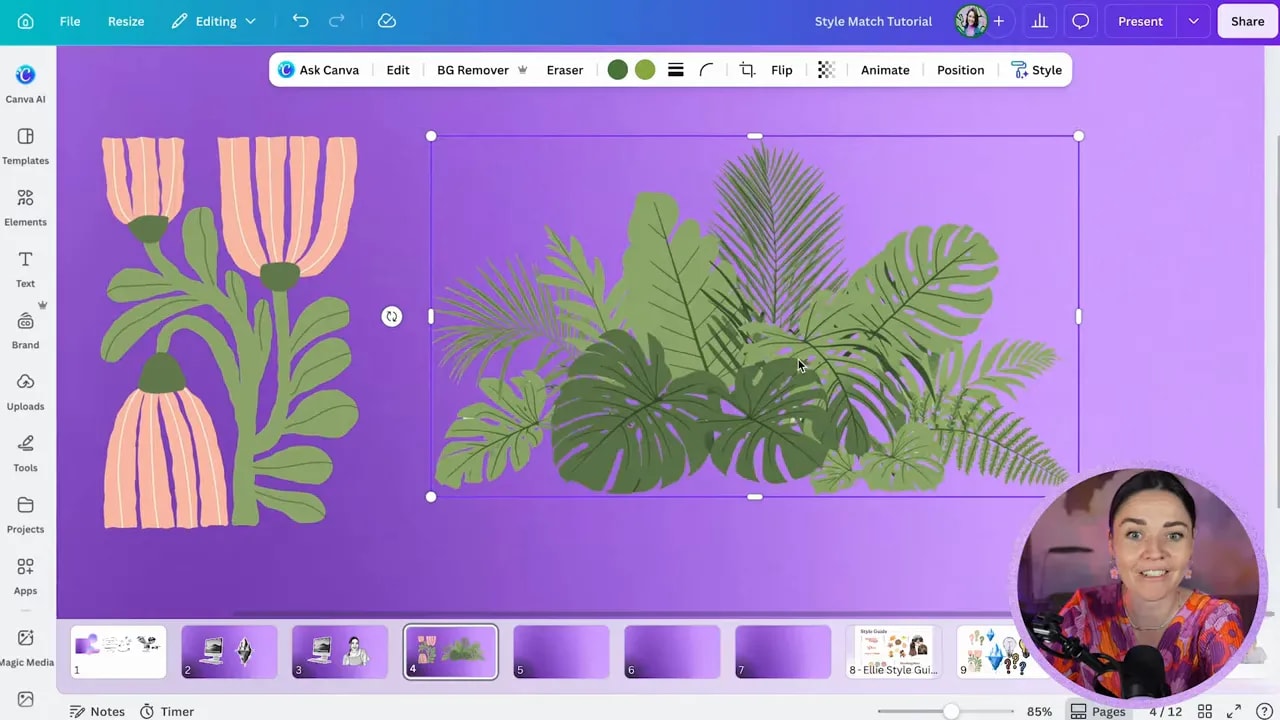
A photo of dense foliage, for example, can be transformed into a fairly flat illustrated cluster of leaves. It may not be as crisp as the original vector-style reference, but it can still get impressively close considering it started as a photograph.
FREE Design Tools to $100k Masterclass
Grow your biz with clever design and Canva hacks that will save you hours and make you sales.
Use the result as a starting point, not necessarily the final answer. You can often improve it by:
- Changing available colours to better suit your palette
- Adding an outline or shadow where needed
- Resizing or cropping the illustration for a stronger composition
- Trying again if the first generation is not quite right
- Undoing the result and selecting a different reference element
If you undo and repeat the process, Canva may generate a slightly different outcome. That means it is worth experimenting rather than assuming the first result is the only option.
Also keep in mind that a Style Match result may not be a perfectly crisp vector graphic. It is still incredibly useful, but it is best treated as a creative asset to assess and refine before using it everywhere.
Step 7: Apply Style Match to a real brand, not just a random graphic
Here is where the feature becomes genuinely useful for everyday business content. Imagine you have already built a visual brand that feels inviting, feminine, and nurturing. Your colours, fonts, and illustration style all support that feeling.
Now you need to create a social post about cooking. You search Canva for an apple, but none of the available apple graphics feel like they belong alongside your existing brand elements.
Instead of settling for an almost-right element, choose an apple graphic or photo and apply the art style from one of your existing custom elements. Canva can turn that apple into something that fits much more naturally within your brand system.
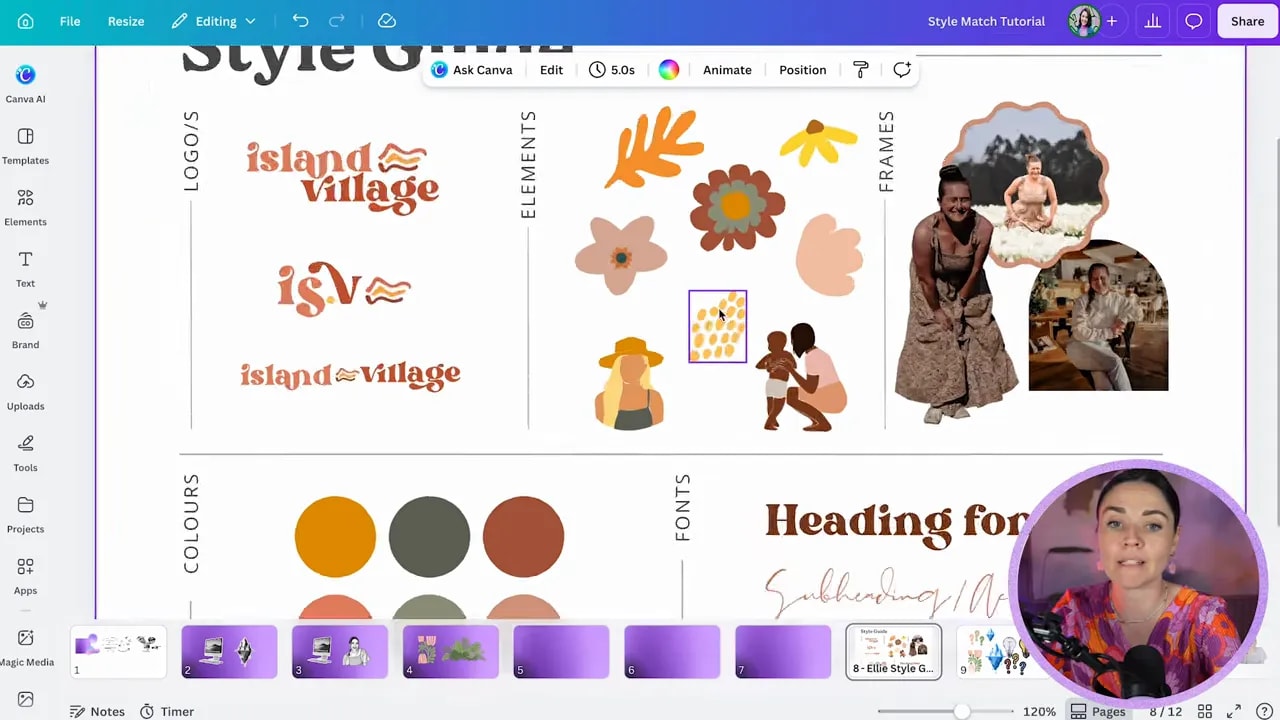
This is why having a complete style guide is so helpful. You are not choosing a visual direction based on whatever looks cool today. You have an intentional set of colours, fonts, imagery, and elements that support the feeling your business needs to create.
Once you have that system, Style Match lets you expand it into more subjects and content themes without sacrificing consistency.
Step 8: Use photos when the subject is too specific for Canva elements
Photos are especially useful when you need a very specific subject that is difficult to find as an existing illustration.
For a cooking-focused post, you may want an image of a woman cooking. You can search Canva Photos, choose an image that suits your message, remove the background, crop it as needed, and then apply the style of one of your established brand graphics.
The result can look like a custom illustration created specifically for that brand, even though the starting point was a photo.
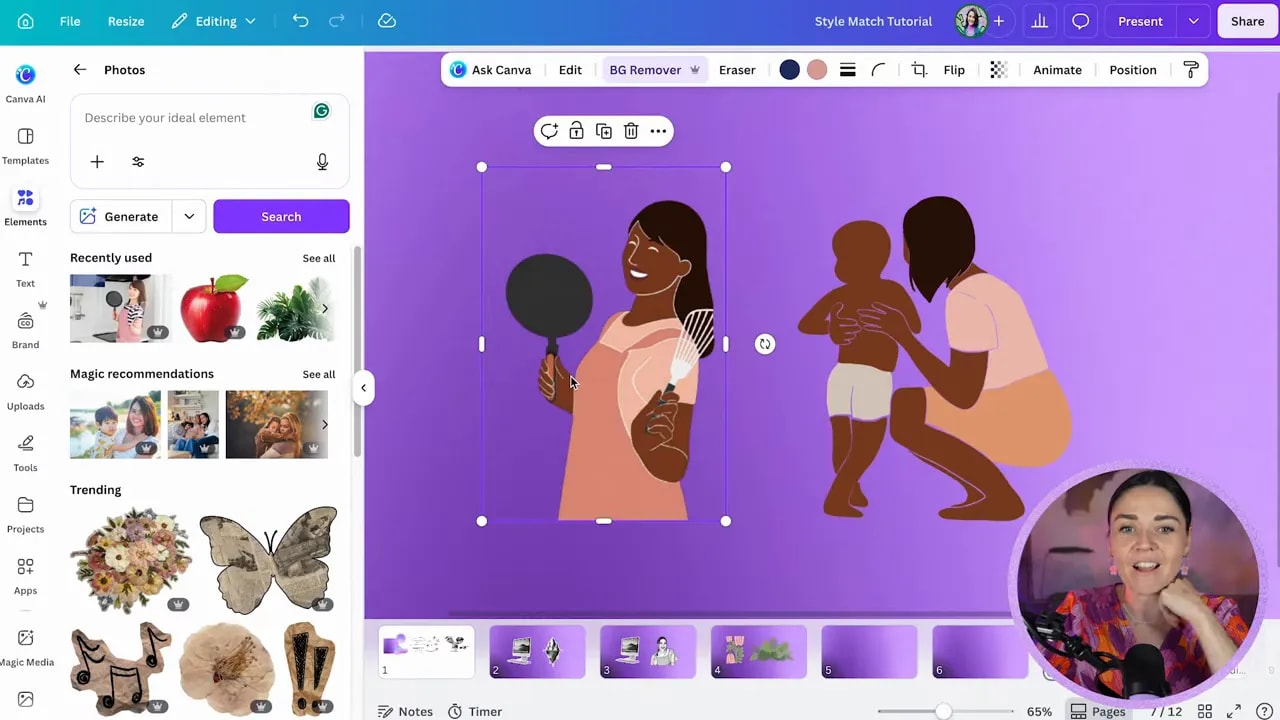
This is particularly powerful if your brand serves a defined audience. You can select a relevant photo, then bring it visually into your existing brand world rather than forcing a mismatched stock image into your post.
Step 9: Turn yourself into a reusable brand element
One of the best ways to use this Canva update is with your own brand photos.
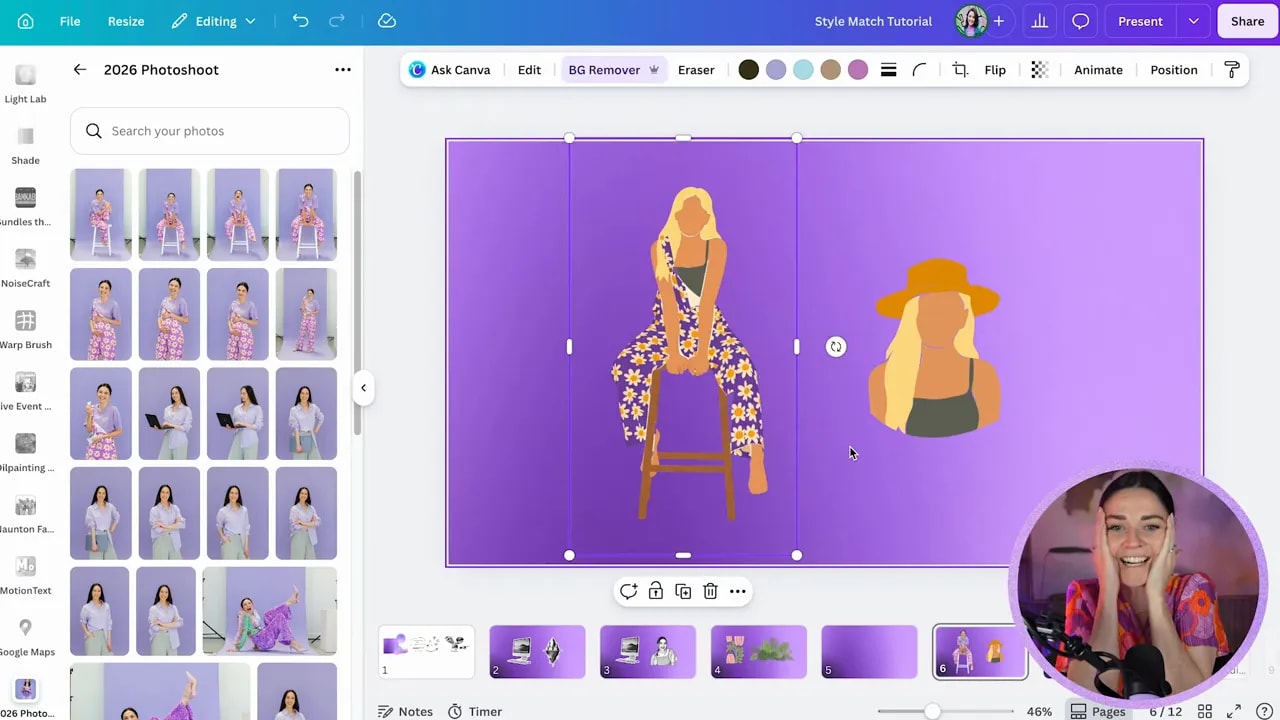
If you have done a brand photoshoot, you probably have plenty of great images that do not always fit every graphic layout as a traditional photo. With Style Match, you can remove the background from one of those images and turn it into a custom illustration that matches your other brand elements.
A photo of you sitting on a stool, for example, can become an illustrated character with colours and visual details inspired by your chosen reference element. Canva can retain recognisable details, such as the stool, clothing shape, and overall pose, while transforming the image into a whole new visual asset.
That means you can create a personal collection of assets from your own imagery, including:
- An illustrated version of you for social posts
- Stylised product images
- Illustrated client imagery, where appropriate
- Custom graphics based on objects you have photographed
- On-brand visuals for topics where Canva does not have the right element
These are the kinds of elements that make your brand feel more memorable. You are no longer relying only on the latest trend or a random Canva template that thousands of other businesses may also be using.
Step 10: Save your strongest results and use them consistently
Once you have created brand elements you love, save them in your Canva Brand Kit or in a dedicated, organised brand library. The goal is not to create one cool AI graphic and forget about it. The goal is to build a set of elements you can keep returning to.
When you are designing your next post and thinking, “How can I make this more interesting?”, you should have a clear answer: grab one of your own saved brand elements.
That is how your design process gets faster and your branding gets stronger at the same time. You create graphics that feel recognisable, polished, and personal without having to reinvent your entire visual identity for every post.
Step 11: Keep the strategy in charge
Style Match is a brilliant Canva feature, but it is most effective when it supports a brand strategy rather than replacing one.
Your visual identity should be built around more than a graphic you happened to like one day. Start with the bigger decisions: who you want to attract, what your brand needs to communicate, how you want it to feel, and what visual choices will hold up over time.
Then use Canva’s tools to bring that foundation to life more quickly and creatively.
If you want help creating the full foundation, from your logo and colour palette to fonts, mood boards, brand elements, and practical Canva design skills, you can explore DIY Design My Biz. The aim is to help you make consistent, beautiful, professional graphics without endlessly questioning every choice.
Build the brand first. Create your custom elements next. Then use Style Match to turn the visuals you already have into a recognisable world that is unmistakably yours.