










Listen on Apple • Listen On Spotify
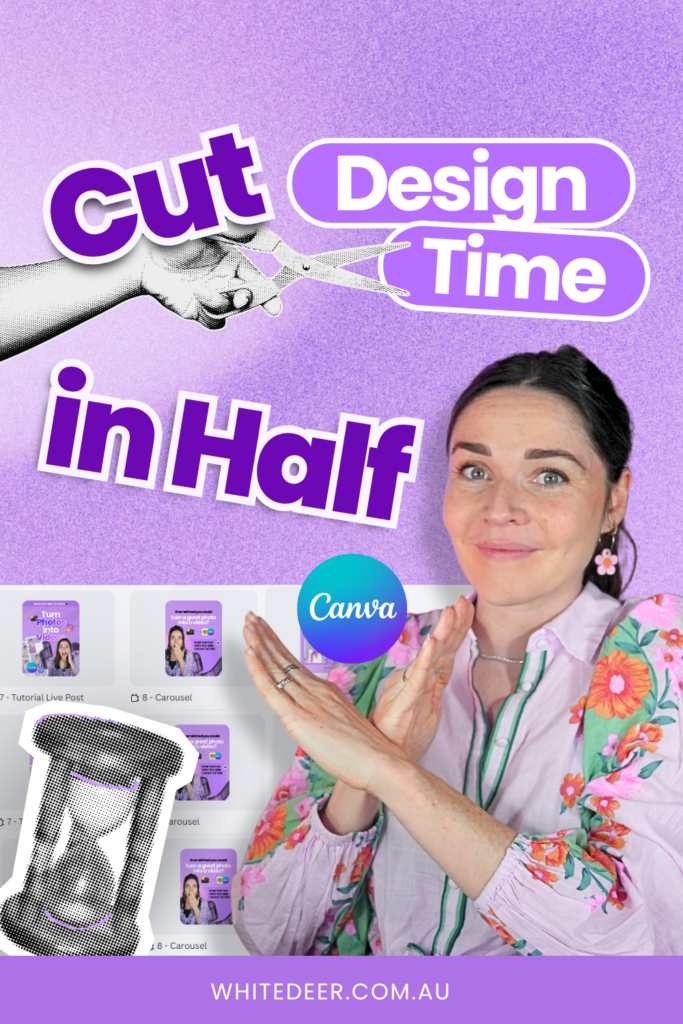
If you’re opening a brand new Canva design every single time you need a new graphic, I want you to stop right now. I see it constantly with the business owners I work with, and once you fix it, it’s one of the fastest ways to get hours back in your week.
This is part two of my Saving Time in Canva series, and today I’m sharing the system that genuinely cut my own workflow in half. No new tools, no fancy tricks, just one shift in how you work.
The Problem with Starting a Canva Design from Scratch
Every time you start a brand new design, you’re rebuilding from scratch. You’re re-entering your sizing, re-entering your branding, rebuilding your layout, over and over. Multiply that across an Instagram post today, another tomorrow, and another the day after, and you’re wasting literal hours you don’t have to be wasting.
Let me introduce you to the Page Stack System
Instead of a new design for every post, I want you to stack it. Add a new page to a design you’ve already built, rather than starting again.
My version of this is one design per quarter. Every social post for that quarter lives as a new page inside one Canva file. So when I’m making a carousel today, I’m not starting from nothing, I’m duplicating yesterday’s quote post page (Ctrl+D, or the three dots and “Duplicate page”) and building from there. My font’s already there. My sizing’s already there. My colours are already there. I’m just swapping the content.
How to Organise your Canva Graphics
Once a design starts getting close to 200 pages, Canva slows down. So at the start of a new quarter, I duplicate the whole previous quarter’s file, keep around 10 of my favourite layouts, tidy it up, and build forward from there. That way I’m never hunting through a thousand random files trying to remember what I posted when.
The Canva Design trick Most People Don’t Know
You can copy a page from one Canva design straight into another, free or Pro. Click the page thumbnail at the bottom, Ctrl+C, open the design you want it in, Ctrl+V, give it a second. That layout you loved from two years ago can be back in front of you and updated in minutes.
Once your templates are built and your content’s written, you can connect an AI tool like Claude to Canva and have it drop your text into the right pages for you. I’ve recorded a Reel on this process right here.
It’s not designing for you, it’s doing the copy-and-paste busywork so you’re not manually pasting headings and tips into five different pages.
I’m still using my own branding, my own templates, and my own words. It’s still my thought leadership, right? I’m just outsourcing the boring part. And I still go back in and manually check spacing and overlaps before exporting, because AI doesn’t get it perfect every time.
Final Words
If you’ve got this system locked in and you’re still feeling like something’s missing in your brand, that’s exactly what I cover in my free masterclass, Design Tools to Get to 100K Online. You can access it for free 👉 https://www.whitedeer.com.au/designmasterclass
WORK WITH JACQUI:
// DIY Design My Biz: The best course for business owners DIYing their own brand and graphics in Canva. Learn more: https://whitedeer.com.au/diy-dmb
// The Co+Creation Design Club: Design WITH the help of a professional designer in this high-touch coaching space: https://whitedeer.com.au/designclub
// Design Studio: If you’re after fully done-for-you design services my studio team can help! https://whitedeer.com.au/designstudio