











Canva is one of those tools that feels either life-changing or totally overwhelming, depending on where you start. If you have opened it before and immediately backed out because it was too much, this guide is built to get you unstuck.
You will learn exactly how to access Canva, set up a free account, and understand the Canva homepage so you know where to click (without getting lost).
Table of Contents
- Step 1: Know your Canva access options (browser, app, and mobile)
- Step 2: Choose the right Canva plan (Free first is totally fine)
- Step 3: Create your free Canva account (step-by-step)
- Step 4: Understand what Canva’s homepage is showing you
- Step 5: Learn the main design types you can create in Canva
- Step 6: Get inspired before you create your first design
- Next step
Step 1: Know your Canva access options (browser, app, and mobile)
You can use Canva in a few different ways. Pick the option that fits your workflow, then stick with it so everything feels consistent.
- Browser on a computer (recommended): This is the easiest and fastest way to use Canva, and it has the most tools and flexibility.
- iPad or phone apps: Great when you do not have access to a computer. You may see slight limitations, but it is still very usable.
- Free desktop app: Works almost the same as Canva in your browser, but installed as an app on your computer.
Step 2: Choose the right Canva plan (Free first is totally fine)
Canva has multiple plans, including:
- Free
- Pro
- Business, Enterprise, and Education options
For most small business owners, the best approach is simple: start with Canva Free, then upgrade to Pro only when you feel blocked by features you need.
If you are curious about Pro later, you can try it with a free trial. But do not let the plan decision stop you from getting started today.
Step 3: Create your free Canva account (step-by-step)
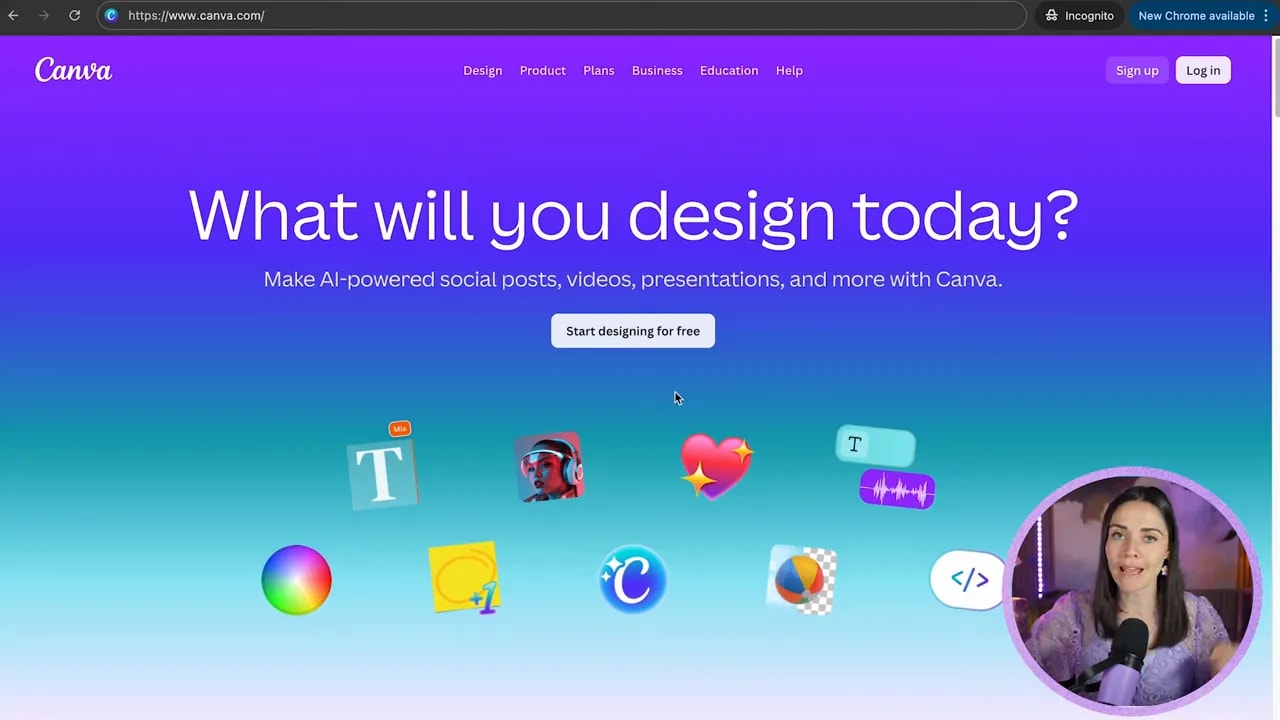
Start by going to canva.com and signing up.
-
Go to canva.com and select Sign up in the top-right corner.
-
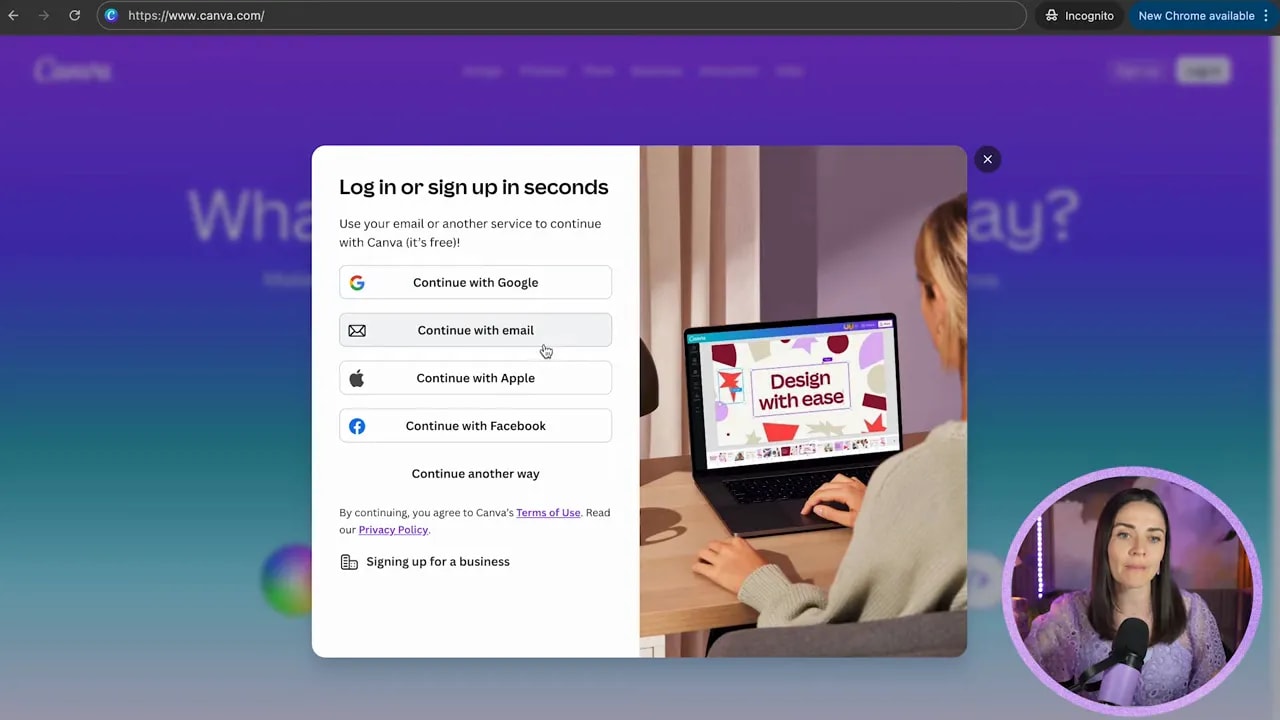
Choose how to sign up: Google, email, Apple, or Facebook.
Tip: Using email gives you more direct control over your account details in the future.
-
Enter an email address you will keep using (personal or work). Using the same email avoids the problem of multiple Canva accounts.
-
Enter your name and continue.
-
Verify your email using the code sent to your inbox.
Copy the code and paste it into the Canva verification box.
-
Answer a quick set of questions Canva asks to personalize recommendations. If you just want to get designing, you can skip any paid-account prompts.
Step 4: Understand what Canva’s homepage is showing you
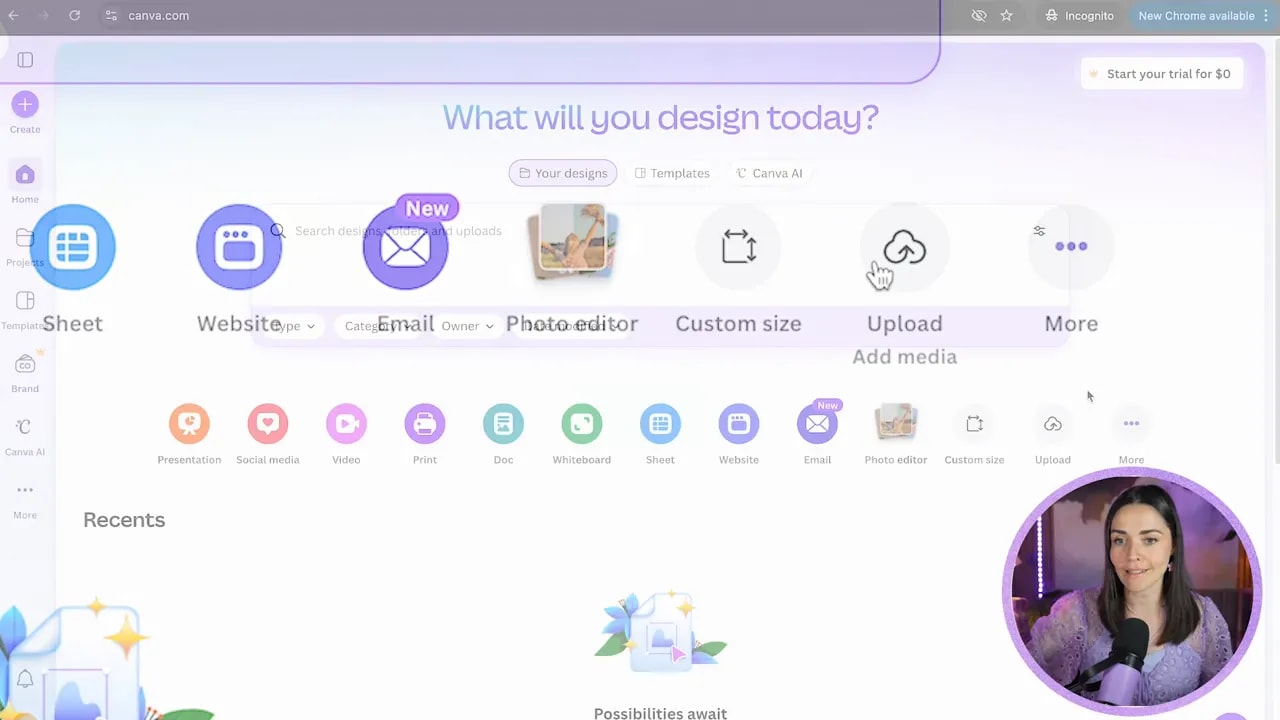
Once your account is ready, Canva welcomes you with confetti and a homepage that can look like a lot at first. The trick is to understand the main areas.
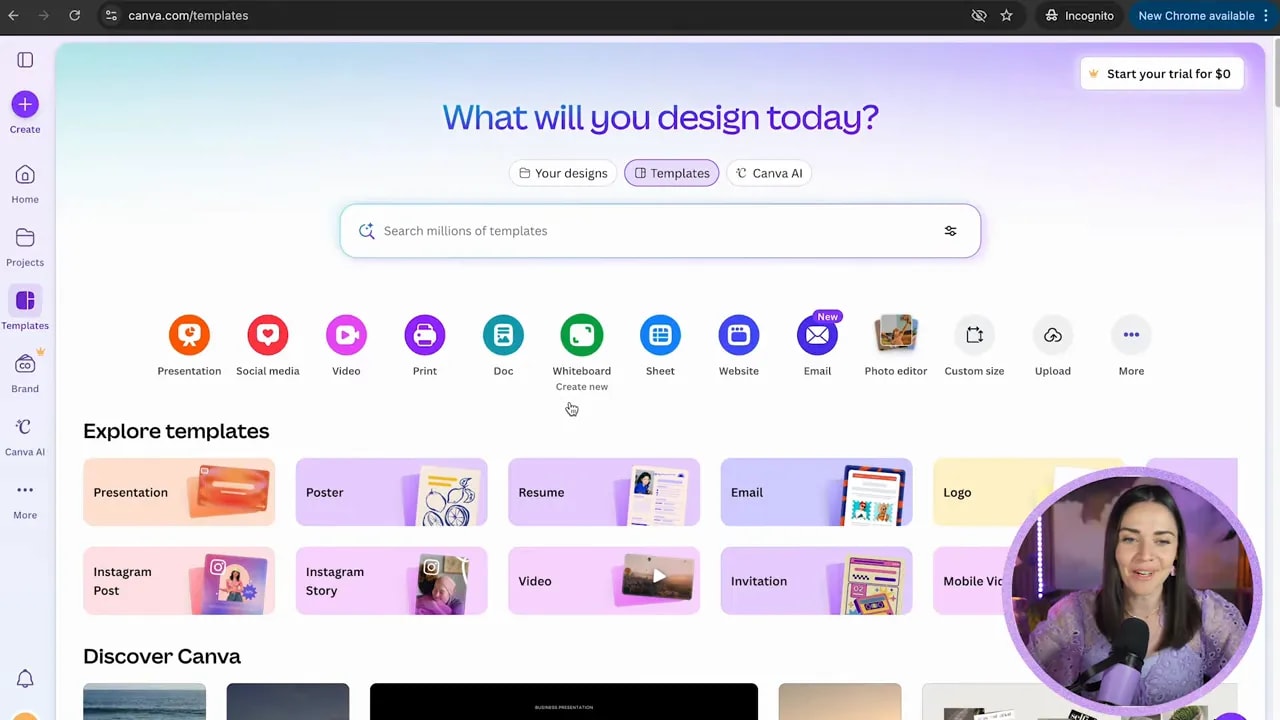
When you open Canva, you will typically see:
- A sidebar (navigation and tools)
- A search bar
- Design types you can create
- Templates (useful, but not where you should start if you feel overwhelmed)
That is why the goal here is simple: avoid chaos by learning what each part does first.
FREE Design Tools to $100k Masterclass
Grow your biz with clever design and Canva hacks that will save you hours and make you sales.
Step 4.1: The sidebar (what each option actually means)
Open the menu in the sidebar to see the sections.
-
Create: Quick way to start a new design.
-
Home: Takes you back to the starting screen.
-
Projects: Where saved designs live. This is also where you can create folders to keep your work organized. You can even make folders for uploaded assets like photos.
-
Templates: Canva’s template library. There are plenty available even with a free account. Templates are great when you want a starting point, but they can be overwhelming if you try to browse everything at once.
-
Brand kit: A place to store your brand assets like logos, fonts, colors, and reusable elements. Brand kit is typically available with Pro, so you may not see it on free.
-
Canva AI: Access to AI features inside Canva.
-
Apps and extra tools: Options like apps, content planner, and design education resources. You do not need these right away, but they exist.
Step 4.2: The search bar (how to stop getting lost in your own designs)
The biggest beginner problem in Canva is not that the tool is hard. It is that people do not name files and then struggle to find them later.
In Canva, your search bar is your best friend once you start creating. To keep things simple:
- Name your designs clearly so you can locate them again.
- Use search once you have multiple projects.
This is what prevents the frustrating “Where did that file go?” moment.
Step 5: Learn the main design types you can create in Canva
From the homepage, Canva shows you the different categories of designs you can build. You are not limited to one type. Depending on your business, you might need:
- Presentation decks and presentation slides
- Social media graphics
- Videos
- Print graphics like postcards and flyers
- Documents (think of it like a Google Doc experience, but designed in Canva)
- Whiteboards (endless space for brainstorming)
- Sheets (similar to spreadsheets)
- Websites and email layouts
- Custom sizes when you need something specific
Also, you can edit photos inside your design, upload your own graphics, and even combine multiple content types within a single project. For example, you might build a social post and then add something else on a separate page, like a spreadsheet, website, or whiteboard.
Step 6: Get inspired before you create your first design
It helps to know that you are not aiming for “good enough.” Canva is capable of producing professional, high-quality designs right inside the platform.
For example, one student created a podcast cover in Canva. The cover was already fine, but after updates made in Canva, the podcast doubled its downloads. That is what happens when you learn where to improve the design, not when you start from scratch with complicated software.
Once you know where the basics live on the homepage, you can move forward with confidence and start building graphics you can actually use for your business.
Next step
Now that you understand how to access Canva, set up your account, and navigate the homepage, your next move is choosing the right type of design and starting your first project the smart way.
FREE Design Tools to $100k Masterclass
Grow your biz with clever design and Canva hacks that will save you hours and make you sales.