












Captioned videos are one of those “small upgrades” that instantly make your content feel more professional. They help with accessibility, they boost clarity (especially on mute), and they can improve how much people engage with what you share.
The good news? You do not need a separate captioning tool. You can generate and style captions right inside Canva, then export your finished video in MP4 for social platforms like Instagram.
Table of Contents
- Step 1: Set up a Canva video (start with the right format)
- Step 2: Insert your video and line it up on the timeline
- Step 3: Generate captions inside Canva
- Step 4: Edit the caption text (remove, fix, or rewrite)
- Step 5: Style your captions for readability
- Step 6: Animate captions (reveal, highlight, typewriter, and more)
- Step 7: Add extra text pop-ups (optional, but great for calls to action)
- Step 8: Export correctly for Instagram and other platforms (MP4)
- Make your captions feel brand-consistent (not generic)
- Bonus: The fastest way to level up your Canva skills
Step 1: Set up a Canva video (start with the right format)
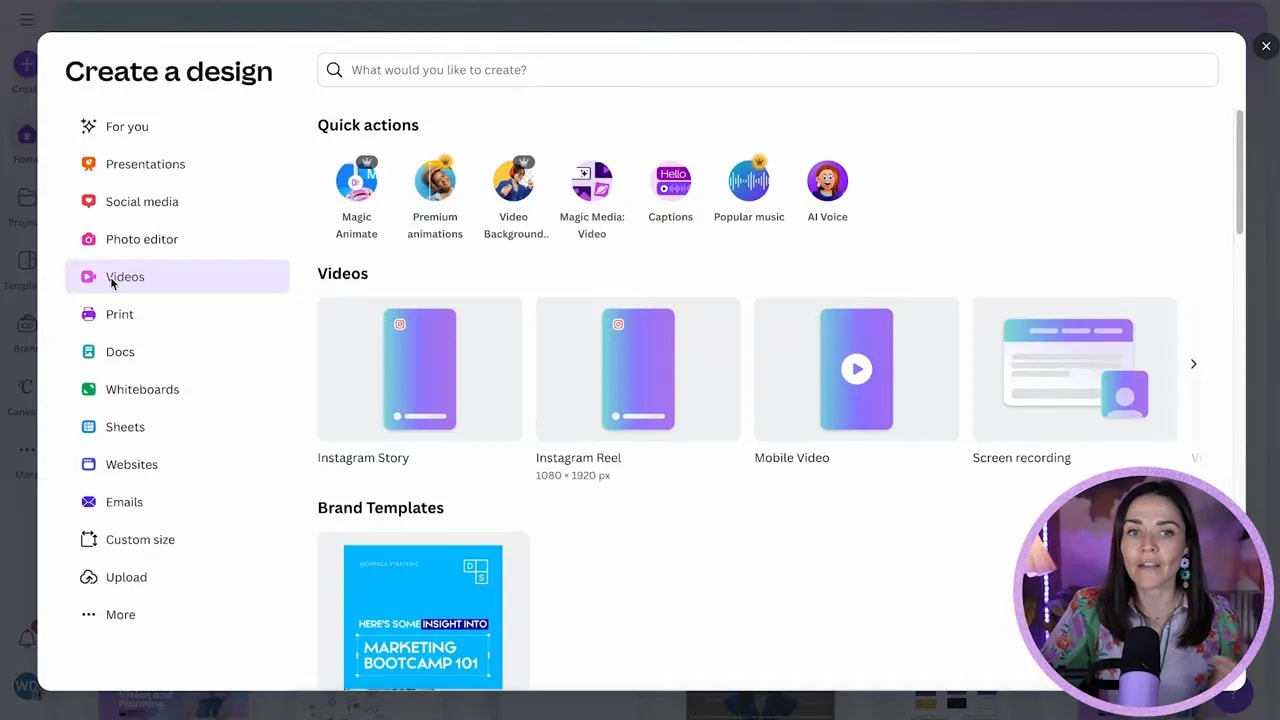
Begin by creating a design in Canva that matches how you plan to post.
- Click Create a design.
- Go to Video and choose Instagram Reel (or another relevant mobile format).
Starting with the correct video format makes everything easier, especially when you size captions for mobile viewing.
Step 2: Insert your video and line it up on the timeline
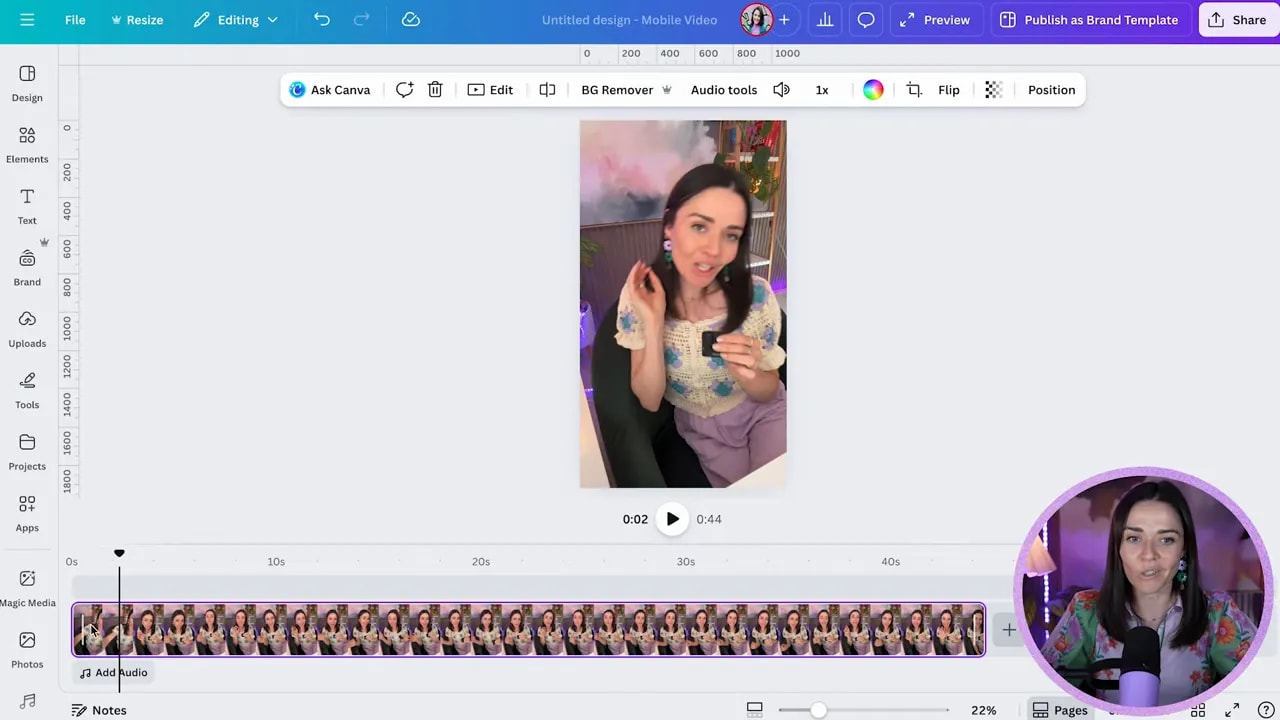
Next, add your footage into the Canva design.
- Go to Uploads.
- Make sure you are filtered to Videos.
- Select your video to insert it into the canvas.
If you want a full-screen look, you can also drag it in and use Right click to set it as a background.
Once the video is placed, you will see it on the timeline at the bottom. You typically do not need to do much here unless you want to trim or reposition. Do a quick alignment so your captions start when you begin speaking.
Step 3: Generate captions inside Canva
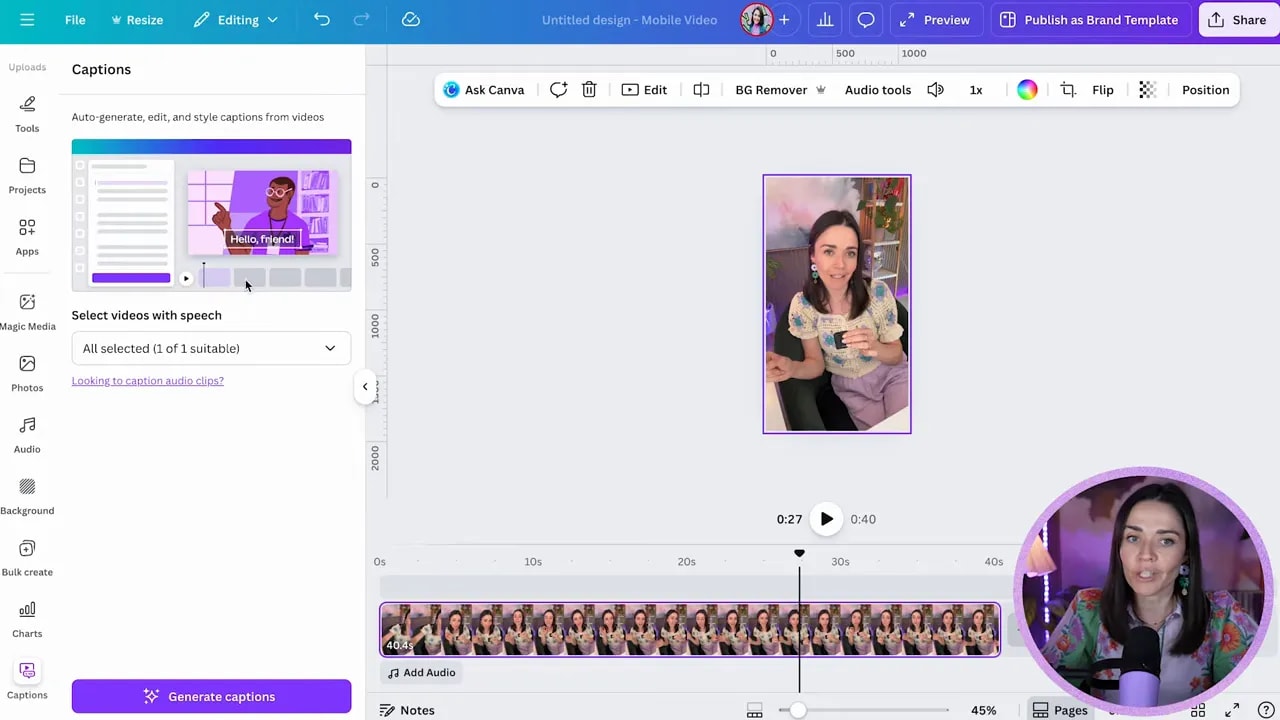
Now for the easy part: letting Canva analyze your audio and create captions automatically.
- Go to Text.
- Choose Captions.
- Select the video track you want captions for (if you only have one video, keep it selected).
- Click Generate captions.
Canva will process your video and create caption text blocks for you.
Step 4: Edit the caption text (remove, fix, or rewrite)
After captions are generated, you can edit what they say.
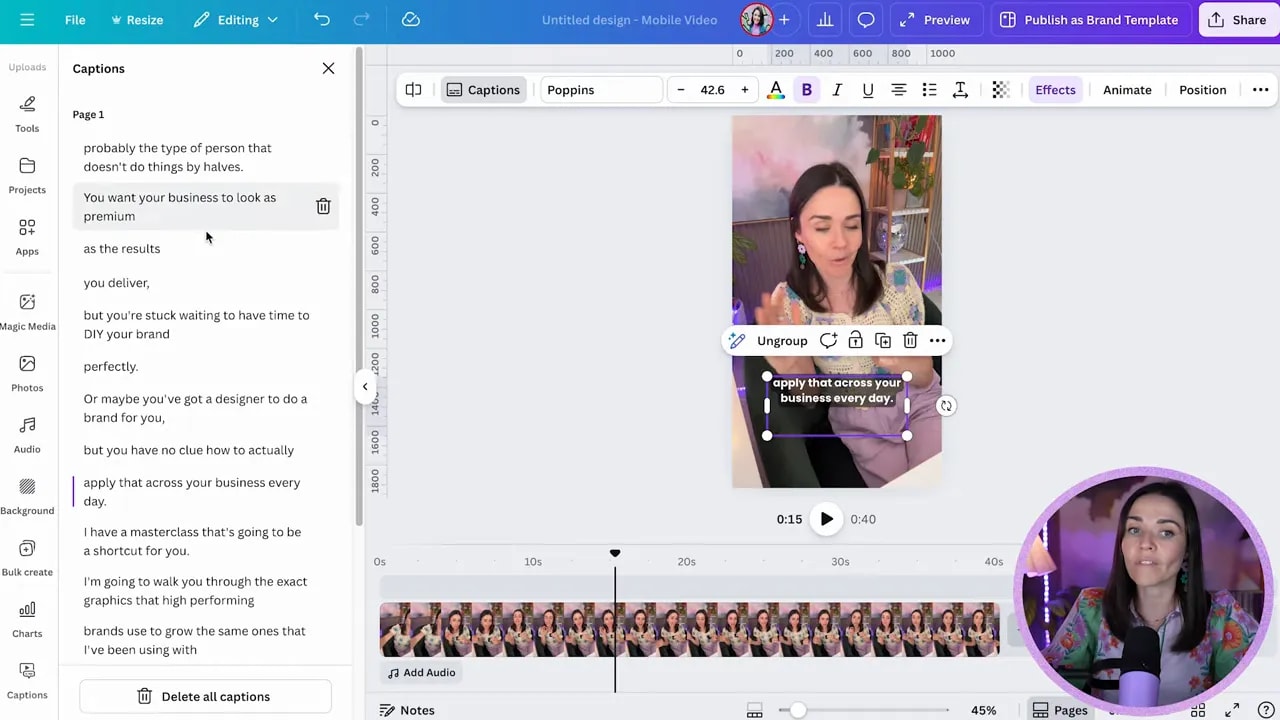
- Click into the caption text box.
- Switch to the Captions view to see the full words Canva created.
- Click a line to edit it, or delete a line using the trash icon.
This is where you correct misheard phrases or adjust wording to match your message.
Step 5: Style your captions for readability
Captions live on top of your video, and videos can change brightness and backgrounds constantly. Your main goal is simple: make captions readable at every moment.
In the caption styling area, you can change:
- Font
- Size
- Color
But the styling power-up is the Effects options, especially Background and Outline.
Background effect: control the shape, spread, and transparency
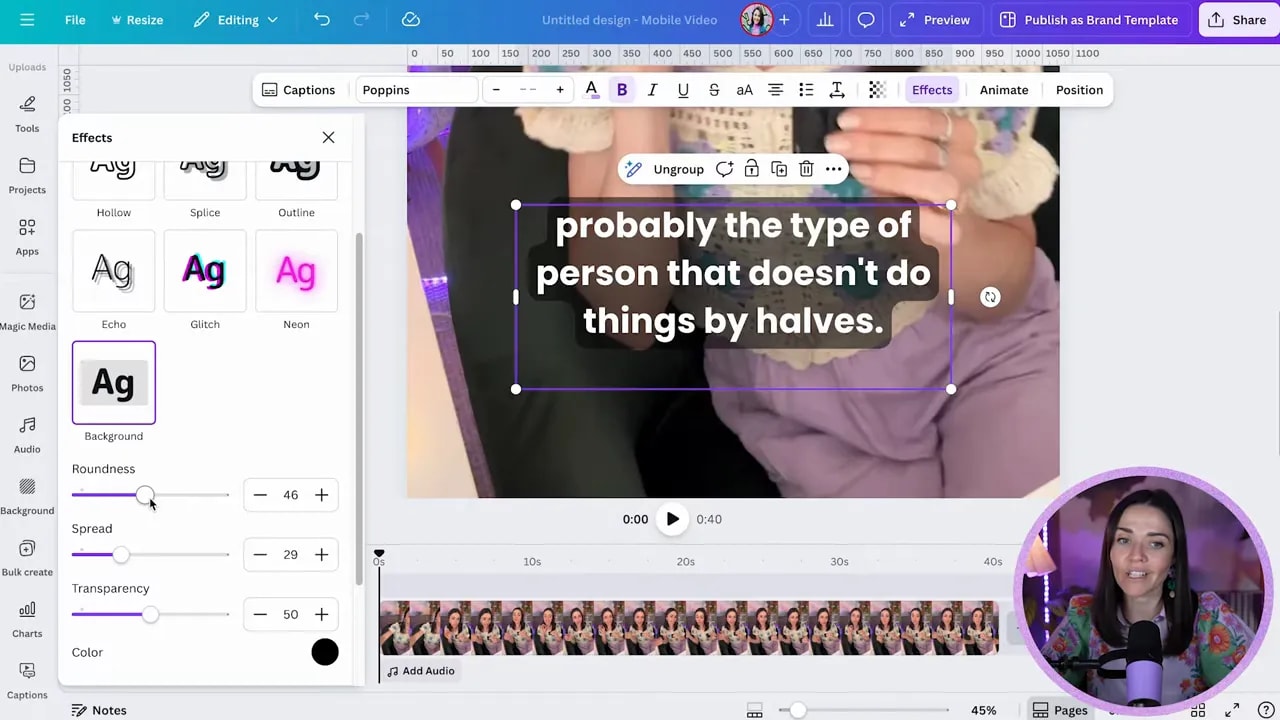
When you open Effects, you will see a Background option enabled.
- Roundness: choose hard edges or a softer, rounded look.
- Spread: adjust how far the background extends away from the text.
- Transparency: make it more solid or more see-through.
If you raise transparency too high (or the wrong way), captions can become harder to read. If you lower it, you get more contrast.
Important formatting caveat (so you do not end up with half-styled captions)
Here is a common gotcha: you can change the color for one caption but not all of them.
To apply changes consistently:
FREE Design Tools to $100k Masterclass
Grow your biz with clever design and Canva hacks that will save you hours and make you sales.
- Click the caption text itself to edit only that specific box.
- Click slightly below the caption box (where Canva shows selection across multiple caption instances) to apply formatting to all current and future caption text.
If you notice only part of your captions changed color, you are probably editing only one selected caption box instead of the whole set.
Outline effect: a strong backup when backgrounds get busy
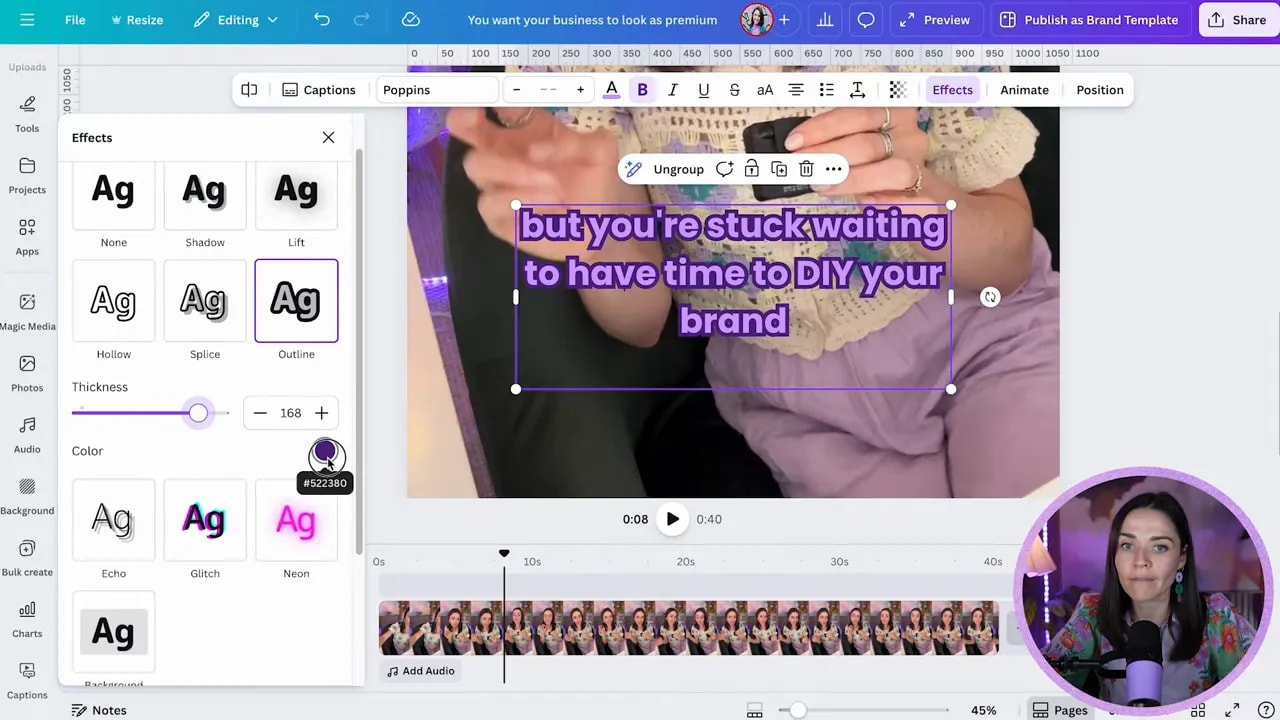
If the video background is constantly changing, using an Outline can keep captions crisp.
- Select Outline.
- Adjust thickness.
- Pick a background/contrast choice (such as white or black behind the outline) to keep text legible.
Think of outline as an “extra shield” for readability.
Step 6: Animate captions (reveal, highlight, typewriter, and more)
Canva’s caption animation options can make your captions feel intentional, not just functional.
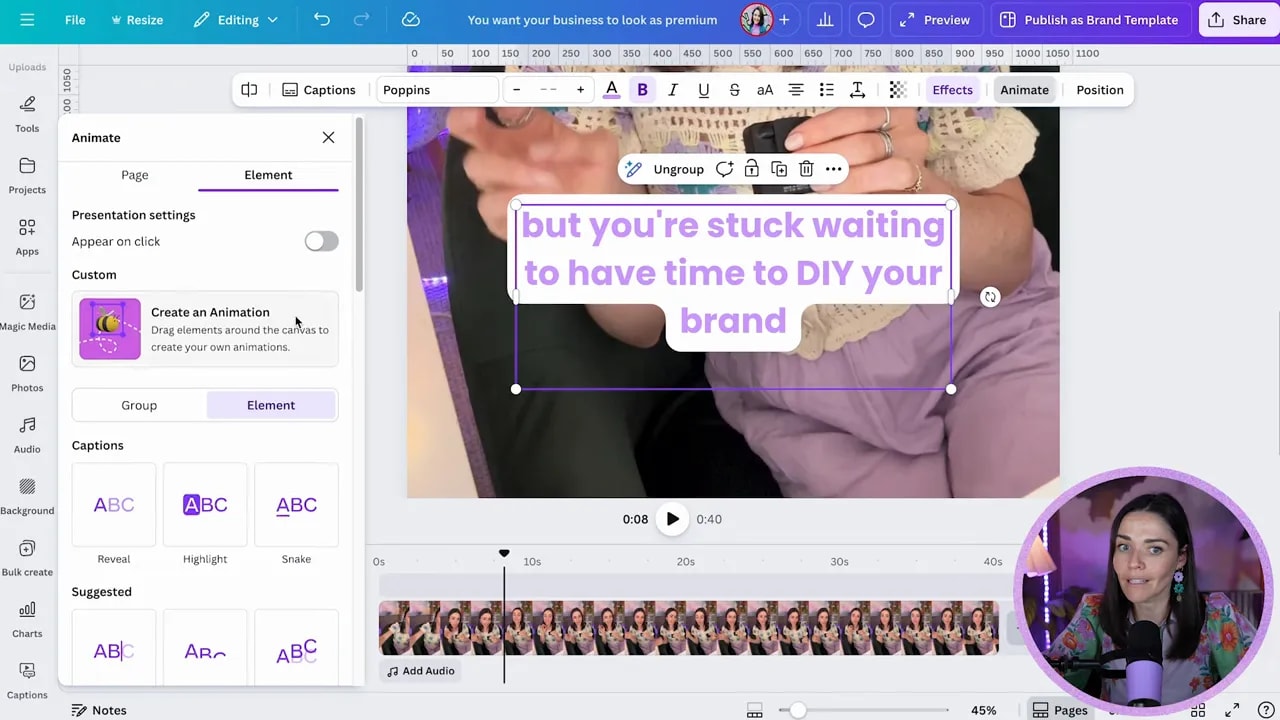
Open the Animate section and choose a style such as:
- Reveal (text appears as it goes)
- Highlight (emphasizes words as they appear)
- Snake (underlines or follows the text)
- Typewriter (like staged typing)
You can also change the highlight color and tweak how it looks so it matches your brand.
One limitation to know: Canva does not make it easy to control how many words appear on each line. You are generally working with the line breaks Canva creates automatically, then animating those blocks.
Step 7: Add extra text pop-ups (optional, but great for calls to action)
Captions are the foundation. But if you want, you can add branded text elements that appear at specific times.
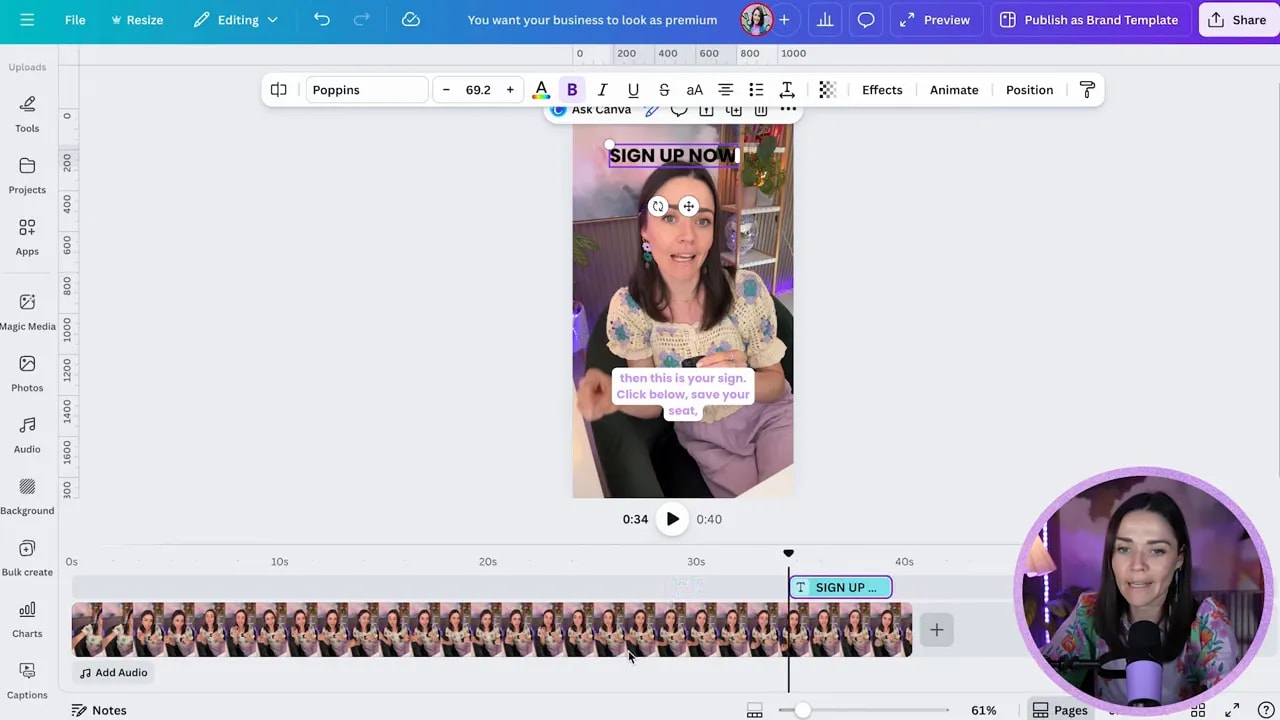
For example, you can add something like “Sign up” and place it on the timeline so it pops in and out during your reel.
- Add a new text element.
- Set its timing using the timeline bar (where the blue indicator sits determines when it appears).
This is a simple way to guide attention without cluttering the screen for the entire video.
Step 8: Export correctly for Instagram and other platforms (MP4)
Once your captions and design are ready, you need the right export settings.
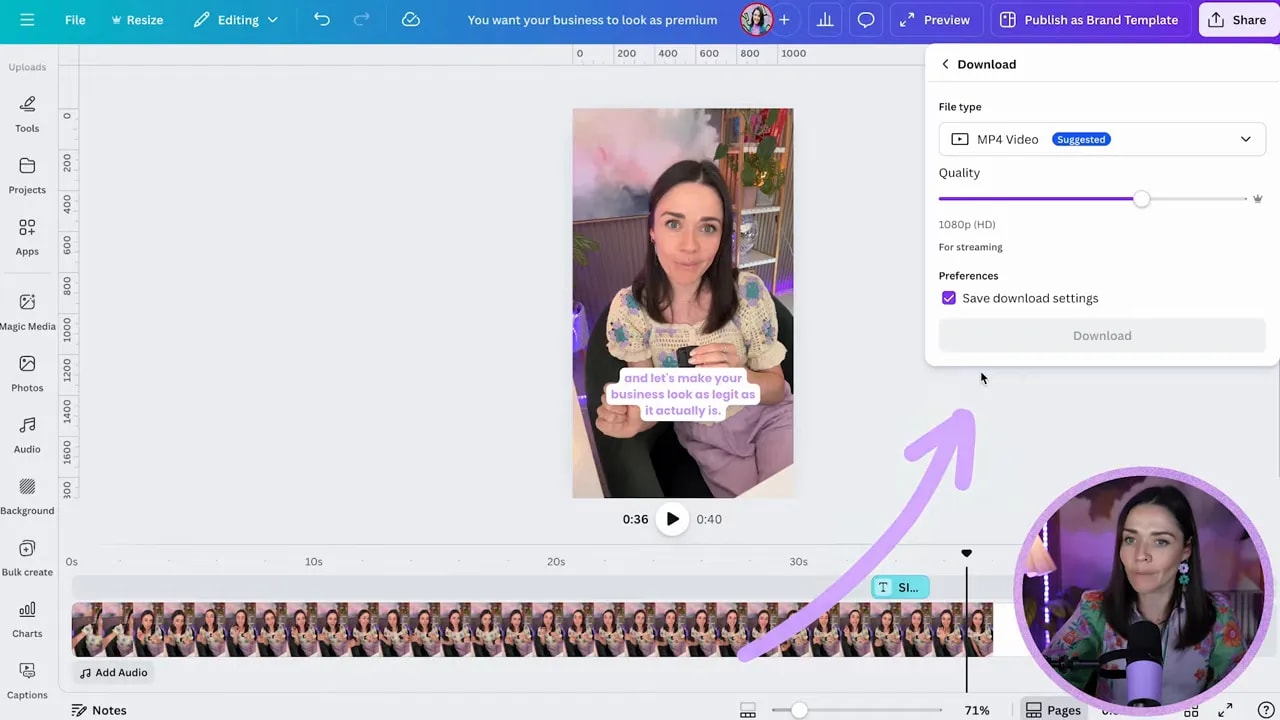
- Click Share in the top right.
- Choose Download.
- Select MP4 as the file type.
- Use 1080p (this is totally fine for most platforms).
- Click Download.
After exporting, you can:
- Send it to your phone, then post directly
- Or upload from your computer (MP4 is widely supported)
Quick checklist before you export
- Captions are placed high enough for mobile viewing
- Text is readable across different background moments
- Formatting is applied across all caption instances (not just one box)
- Animation looks good and does not distract from the message
Make your captions feel brand-consistent (not generic)
Reusable caption templates are a big credibility boost. Once you find a background style and font combination that works for your brand, keep it consistent across reels and videos.
If you are using this for business, that consistency helps your content look intentional and polished, which makes people more likely to trust what you are offering.
Bonus: The fastest way to level up your Canva skills
If you want captions and other Canva graphics to look more professional without wasting hours, consider a Canva-focused training that covers common design mistakes, practical hacks, and a full start-to-finish build process.
You can explore a free master class titled Design Tools to $100k here: https://www.whitedeer.com.au/designmasterclass
FREE Design Tools to $100k Masterclass
Grow your biz with clever design and Canva hacks that will save you hours and make you sales.